TABLE OF CONTENTS
- Work Orders Displayed in the Dashboard
- Dashboard Functionality Overview
- Create a Work Order
- Work Order Card
- Related Articles
Work Orders
A Work Order (WO) in FCX is used to assign work and track labor and deliverables against a specific scope under a Build Plan. Common WO Types include things like “Tower Install,” “Site Walk,” “Tiger Team,” “Training” and “Integration.”
Both “Direct-Cost” type WOs and “Overhead” types are used so that every hour of labor in the company can be bucketed with WOs for Financial Planning and Analysis, and to inform quoting and invoicing.
WOs are often used as “Work Authorization” forms for field deployments and can have deliverable Checklists attached to them to aid Close-Out Package Mgmt. WOs are Subordinate to BPs and Predominate to Checklists.
How to access Work Orders list
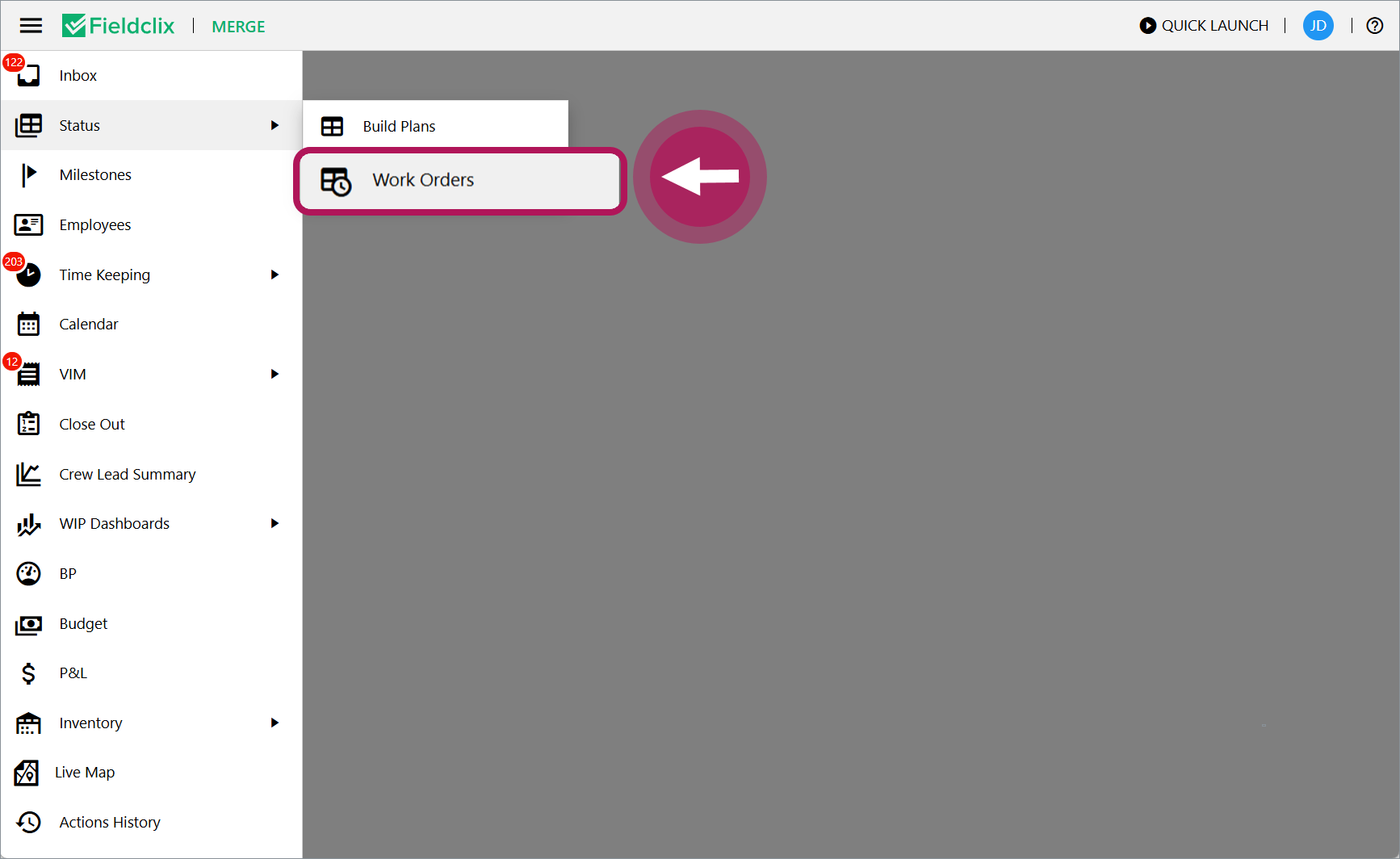
Work Orders are stored in the Work Orders reference, which is accessible to employees assigned to Build Plan Manager role.
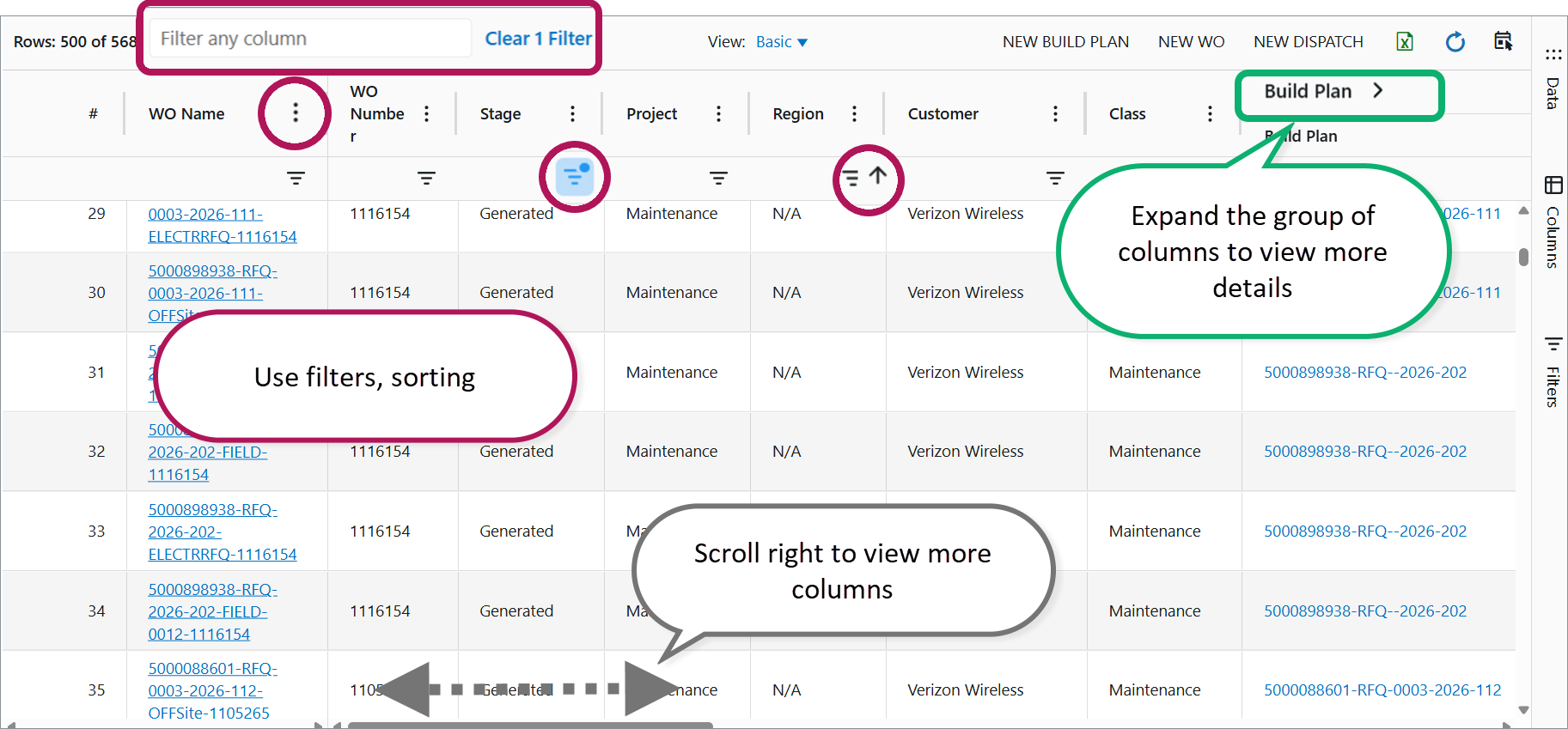
You can also access the list of Work Orders through the powerful Work Orders dashboard, built on the AG Grid platform. This dashboard simplifies working with large datasets by enabling features such as data filtering, sorting, customization, chart building, and more.
The Work Orders dashboard is accessible for employees assigned to Build Plan Manager and Advanced Field Manager roles.
In this article, we will explore the Work Orders dashboard and the features it offers.
Understanding Work Orders Access on the Dashboard
The default dashboard view displays all Work Orders of active Build Plans (BPs).
The list of Work Orders you see depends on your relationship to each Build Plan. For example, you may be a BP Owner, Project Owner, or dispatched employee. To learn more about your relationship to a BP and how to access BP financial information, click here.
Work Orders Displayed in the Dashboard
By default, the dashboard shows all Work Orders tied to active Build Plans, except those in Closed or Non-Dispatch stages.
To view Closed or Non-Dispatch Work Orders, filter by Work Order Stage.
Dashboard Functionality Overview
The Work Orders dashboard is a centralized interface designed to help you efficiently manage, monitor, and analyze all aspects of Work Orders. Here are key functionalities of the Work Orders dashboard.
Comprehensive Work Order List
View a real-time, filterable list of all Work Orders, including key details such as WO Category, Stage, WO Type, Financial Account, Description, and more.
Filtering and Customization
- Filter Work Orders by Planned dates, Site, Category, WO Type, WO Hours, or other relevant criteria to focus on the most pertinent data.
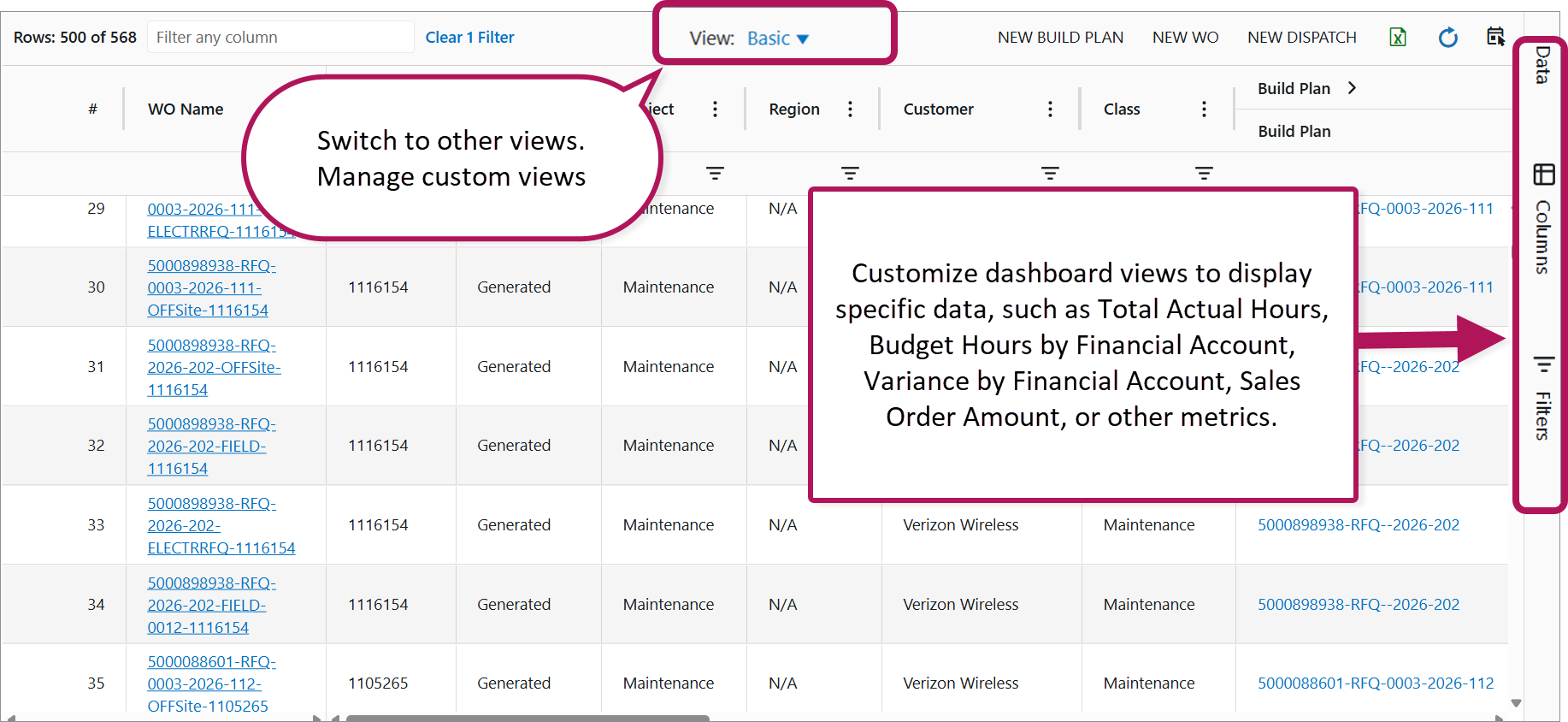
- Customize dashboard views to display specific data, such as Total Actual Hours, Budget Hours by Financial Account, Variance by Financial Account, Sales Order Amount, or other metrics.
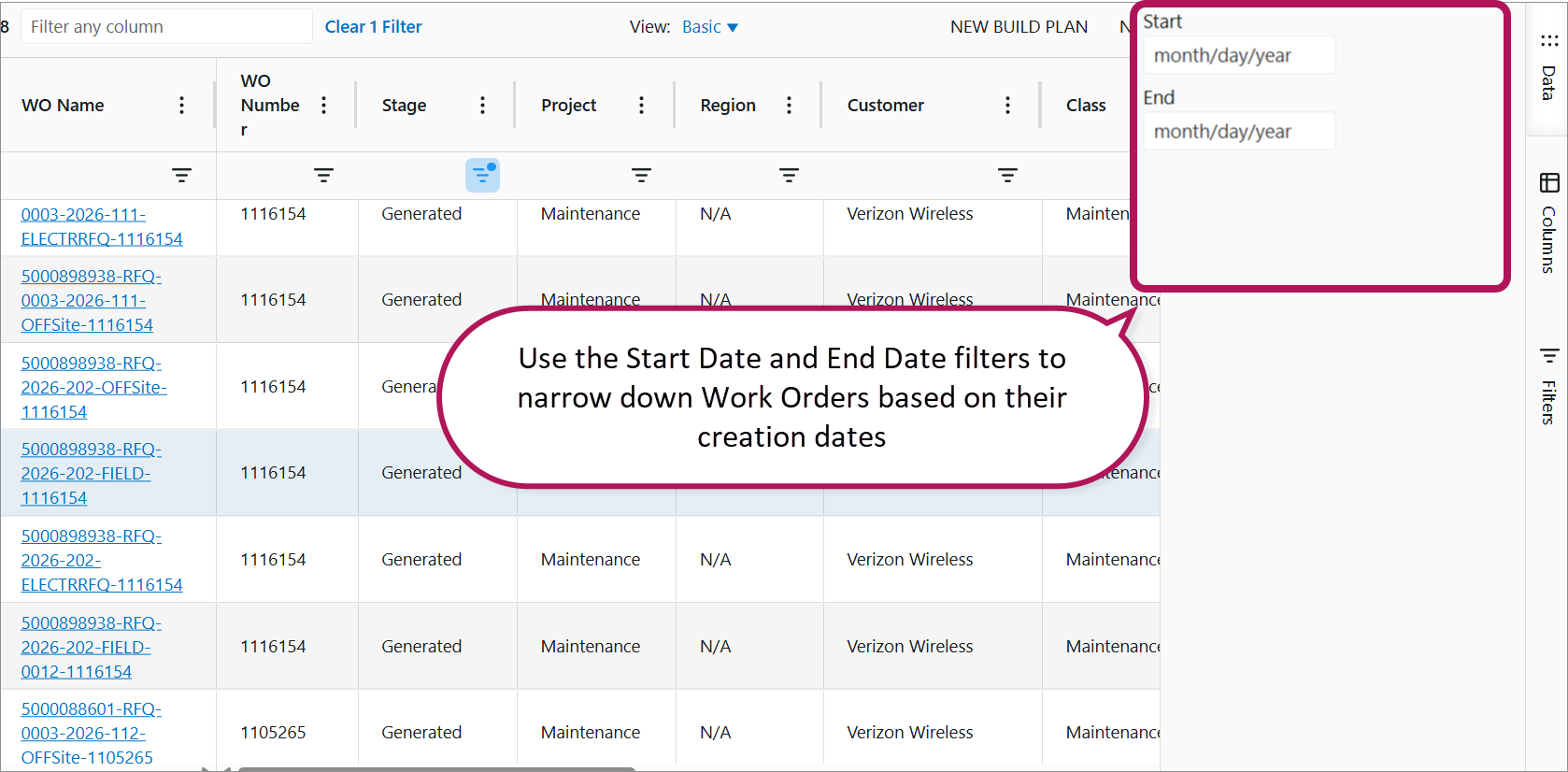
- Use the Start Date and End Date filters to narrow down Work Orders based on their creation dates.
Scheduling Work Orders
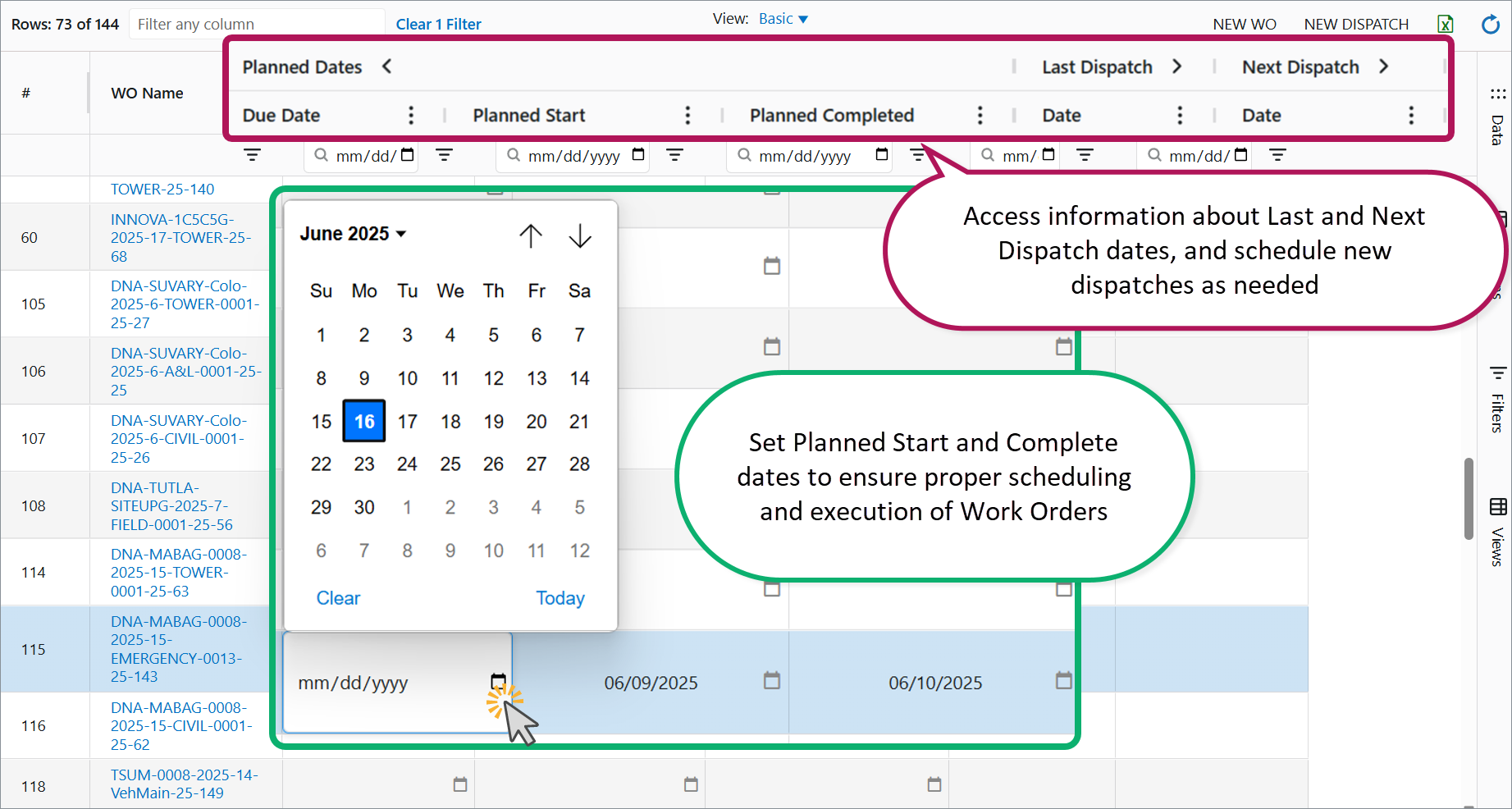
- Set Planned Start and Complete dates to ensure proper scheduling and execution of Work Orders.
- Access information about Last and Next Dispatch dates, and schedule new dispatches as needed.
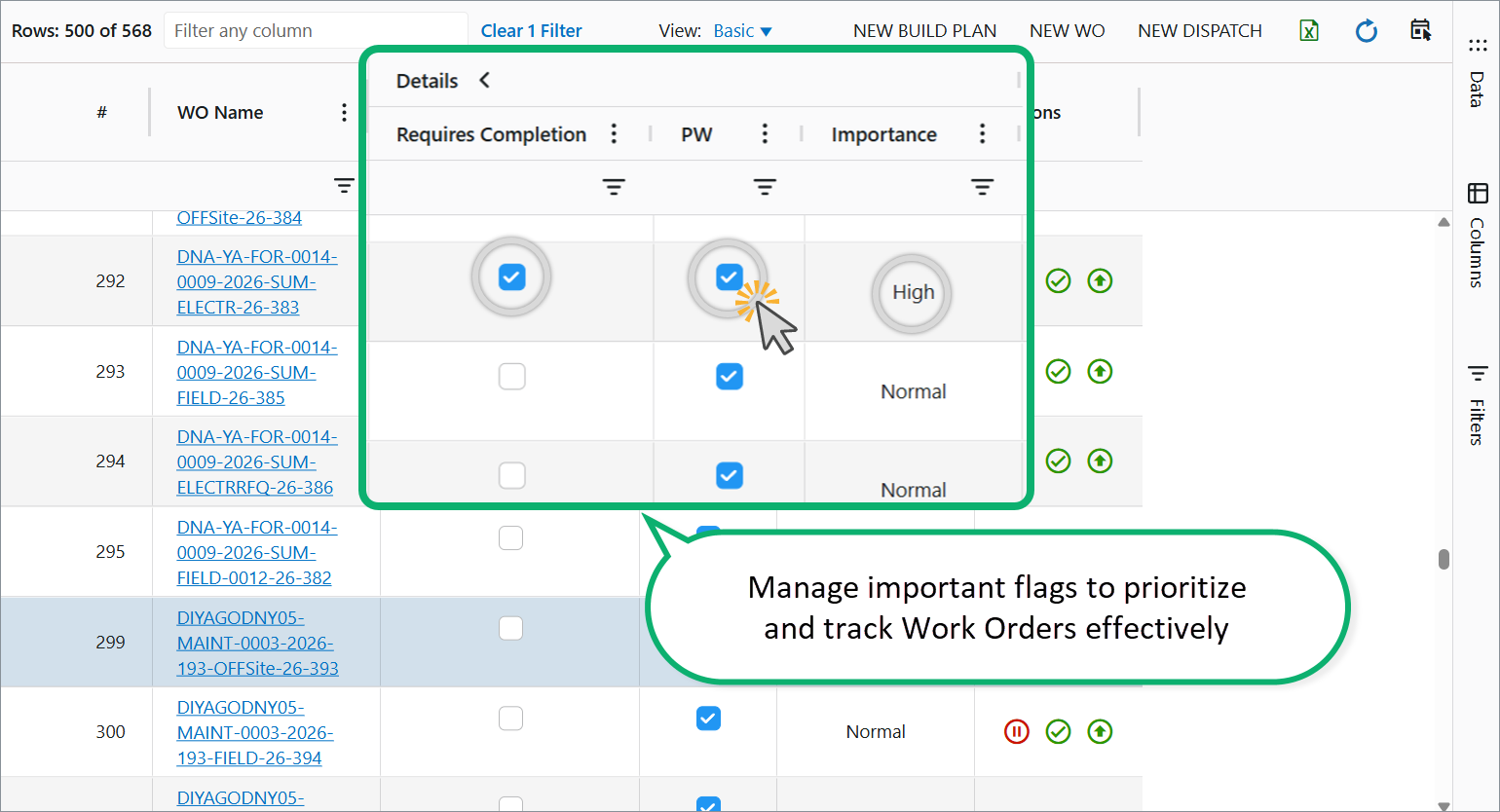
- Manage important flags to prioritize and track Work Orders effectively:
- PW (Prevailing Wage): Indicates that the work scheduled under the Work Order is subject to prevailing wage requirements. Read more in the section below.
- Important: Marks the Work Order as low/normal/high priority.
- Requires Completion: Designates that the Work Order requires manual completion with a specific action.
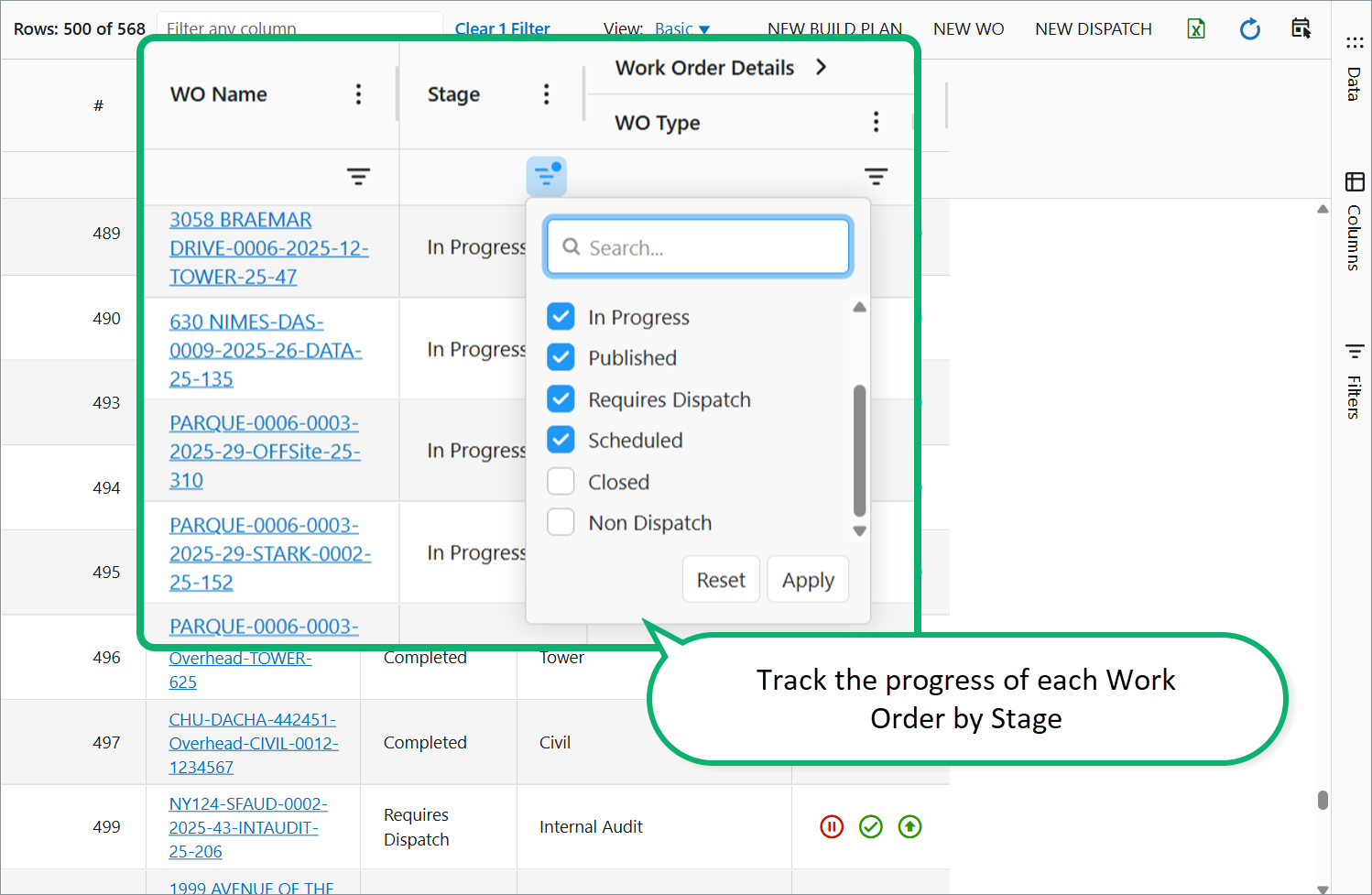
Track the Progress of Each Work Order by Stage
The Work Orders dashboard visualizes progress through distinct stages:
Requires Dispatch: A Work Order needing completion awaits dispatch creation; no dispatches have been created or published.
Generated: A Work Order doesn't require completion and has no dispatches.
In Progress: A Work Order doesn't require completion but has at least one past published dispatch (published after its dispatch date).
Scheduled: A Work Order has an unpublished dispatch for current or future dates.
Published: A Work Order has a published dispatch for current or future dates.
Non-Dispatch: Represents "shadow dispatch" Work Orders that don't need scheduling, like certain office or warehouse WOs.
On Hold: A Work Order is paused; the On Hold checkbox is active.
Completed: The Work Order is manually marked complete, with a recorded Work Order Completed date.
Closed: Final stage; the Work Order record is closed, with no further dispatching, quoting, photos, or checklist activities expected.
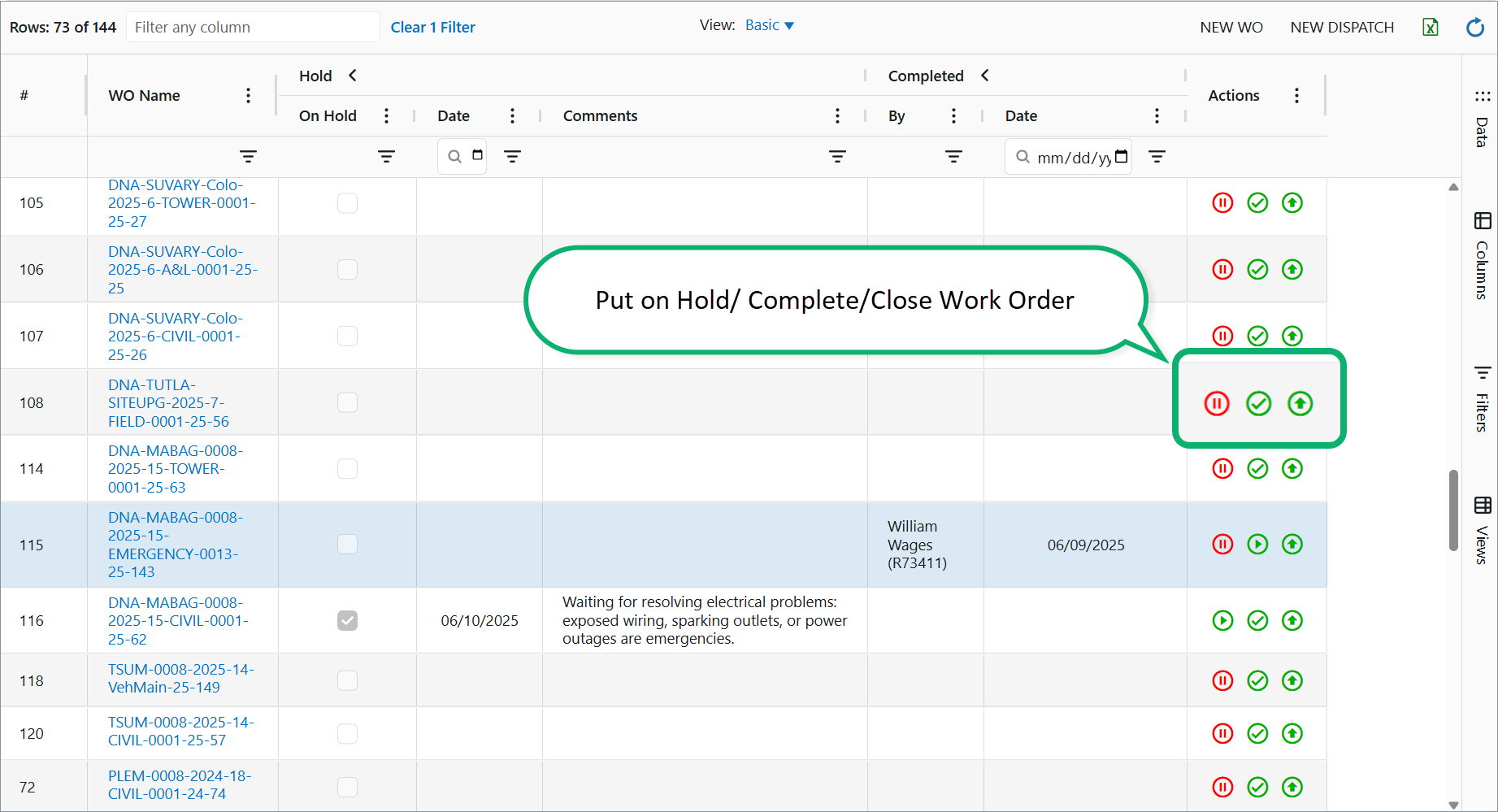
Put on Hold/ Complete/Close Work Order
The dashboard helps you spot Work Orders on hold, completed, or needing immediate attention. Take direct actions:
- Actions column in the dashboard: Mark Work Orders complete or put them on hold.
- Work Order card: Access these actions via the web card.
Put on Hold and Release from Hold
- To place a Work Order on hold:
Click “On Hold” button to indicate that no work is currently being performed on the Work Order. This is useful in situations such as awaiting parts, pending approvals, or resource unavailability.
Specify the “On Hold From” date to track when the hold started, and enter any relevant comments to provide context for other team members.
- To release a Work Order from hold:
Click the appropriate button to resume the Work Order when the blocking issue is resolved. Resuming a Work Order reactivates it for scheduling, dispatch, and work activities.
Complete and Resume Work Order
- To mark a Work Order as complete:
Select the “Complete” option once all planned work has been successfully finished and verified. Completing a Work Order signals to all stakeholders that the job is done and may trigger billing, reporting, or archival processes.
- To resume work on a Work Order:
If additional work is required after completion—such as corrections, follow-ups, or additional tasks—click the “Resume” button. This reopens the Work Order for further action and updates its stage accordingly.
Close Work Order
- To close a Work Order:
Closing a Work Order indicates that the record is finalized and no further activities—including work, dispatching, quoting, or checklist/photo management—are expected. This action typically follows completion and final approval, helping maintain accurate historical records for audits and performance analysis.
- Activate (Reopen) a Closed Work Order
To activate a closed Work Order:
If further work or modifications are needed after a Work Order has been closed, use the “Activate” action to move it from the closed status back to active. This reopens the Work Order, allowing scheduling, dispatch, and work activities to resume as needed.
Labor and Financial Data Columns
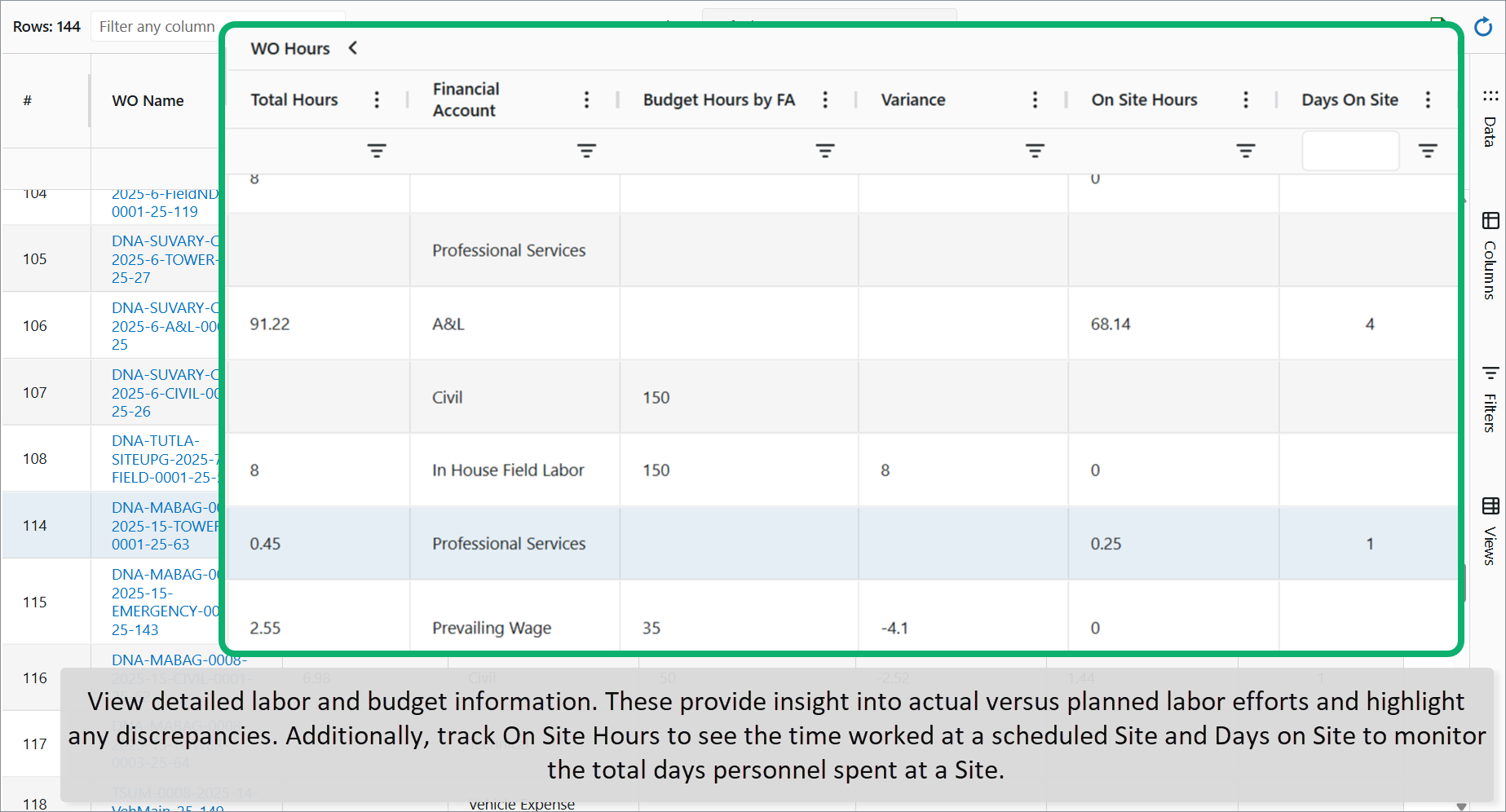
View detailed labor and budget information with columns such as Total Actual Hours, Budget Hours by Financial Account, and Variance by Financial Account. These provide insight into actual versus planned labor efforts and highlight any discrepancies. Additionally, track On Site Hours to see the time worked at a scheduled Site and Days on Site to monitor the total days personnel spent at a Site.
Sales Order Information
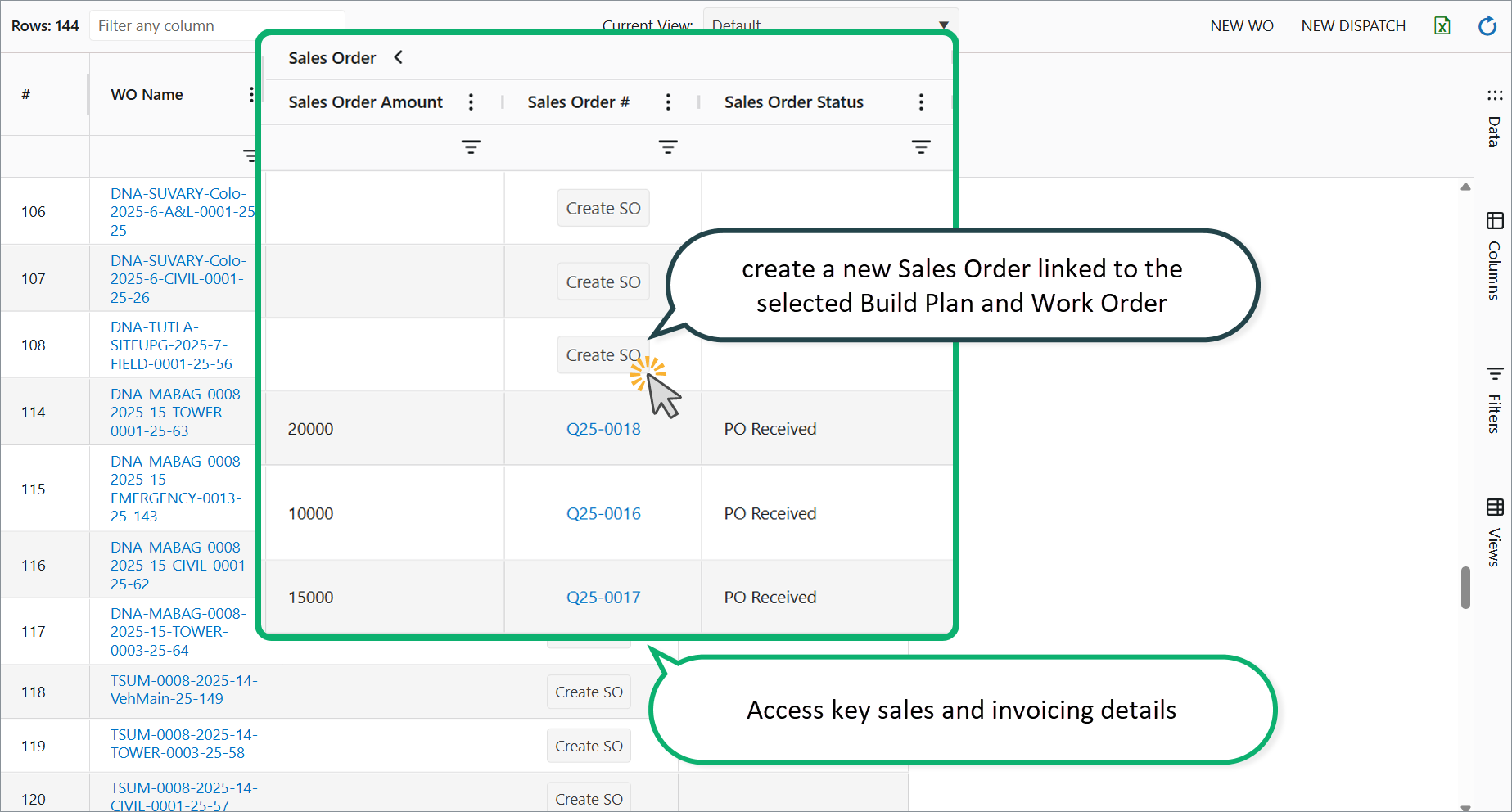
Access key sales and invoicing details through columns like Sales Order Amount, Sales Order Number, and Sales Order Status. The Sales Order Status reflects the current stage of the order, allowing you to monitor the billing and financial progress related to each Work Order.
Creating a Sales Order from a Work Order
To create a new Sales Order linked to the selected Build Plan and Work Order, click Create SO. This action opens the Sales Order desktop card, allowing you to review and complete the Sales Order details.
Attachments Columns
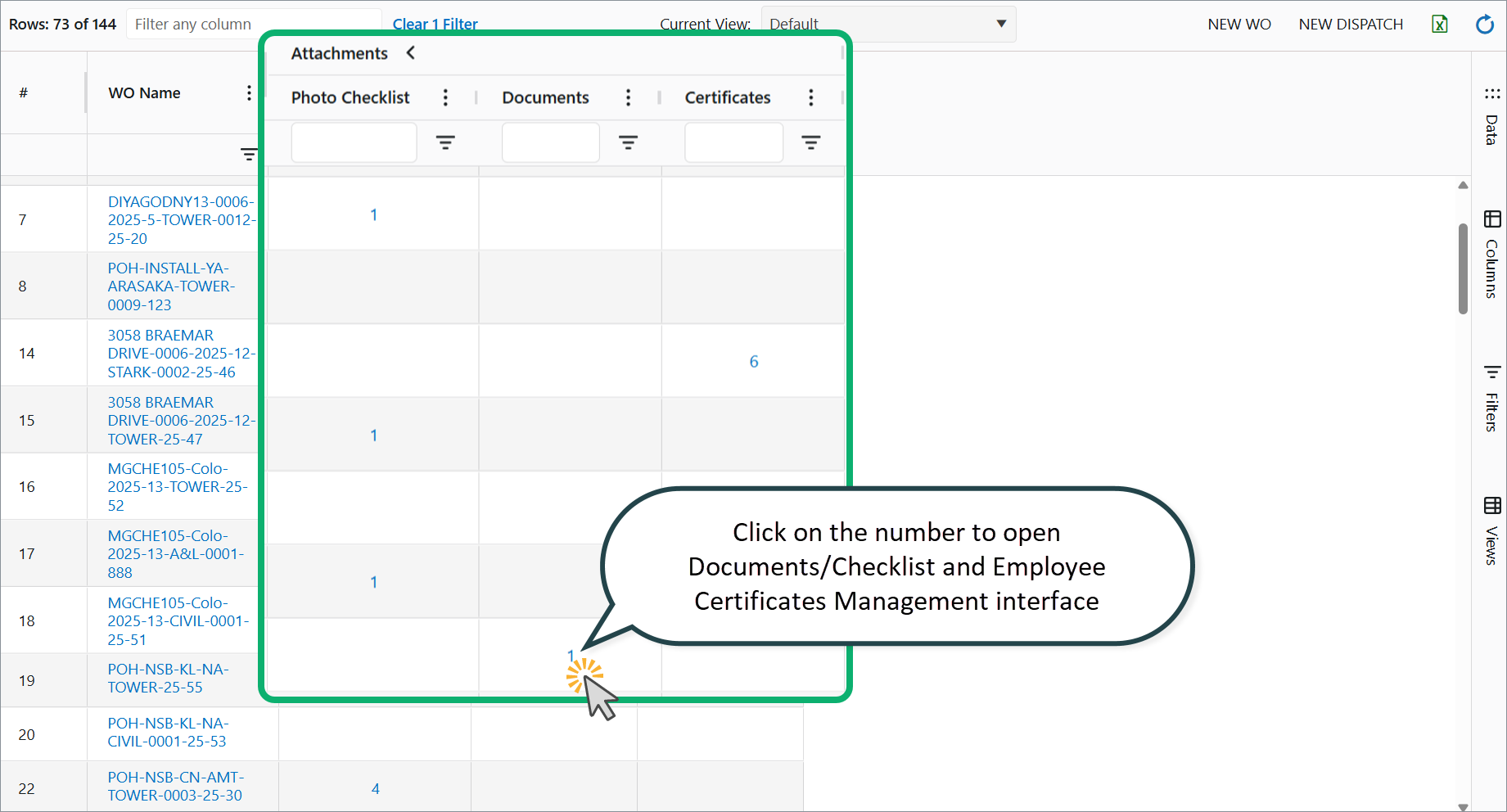
The dashboard displays key attachment-related data in a dedicated group of columns. These include the number of photo checklists attached to a Work Order, the count of documents associated with the Work Order, and the number of required certificate types. This information helps you quickly assess the completeness of documentation and compliance requirements linked to each Work Order.
Navigate to the desired column and click on the number to view more details. This will open the relevant tab of the Work Order card: Checklists, Documents, or Certificates.
Learn more about each of these tabs in the Work Order card section below.
Create a Work Order
The automatic generation of Work Orders is determined by the Work Order type. If the Work Order type provides for automatic generation, Work Orders will be created automatically along with a Build Plan. For more information on Work Order types and how they control automatic generation, see the article “What is a Work Order Type?”
However, Work Orders can also be created manually. To manually create a Work Order from the dashboard:
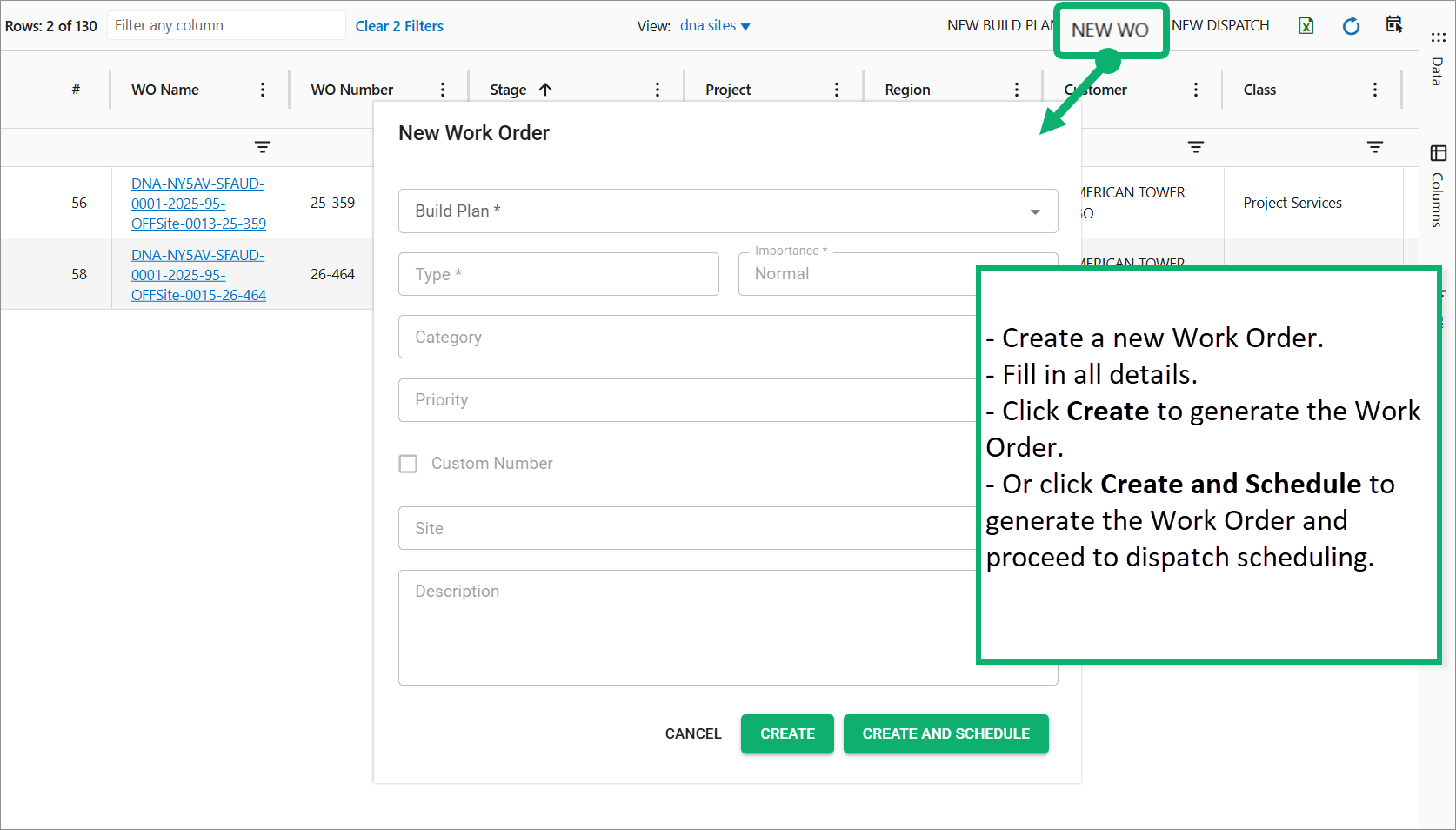
- Click the New Work Order button to open the creation window.
- Fill in the required details:
- Build Plan: Select the associated Build Plan.
- Work Order Type: Choose the appropriate type.
- Optional fields:
- Importance: Select to prioritize the Work Order. It defaults to the Work Order Type.
- Category: Select a Work Order category to classify it.
- Priority: Match the priority label from your customer or ticket system.
- Custom Number: Check the box and enter a custom identifier if needed.
- Site: Select a Site if different from the Build Plan site (e.g., a related site).
- Description: Add any relevant notes or details.
- Finalize the creation:
- Click Create to generate the Work Order.
- Or click Create and Schedule to generate the Work Order and proceed to dispatch scheduling.
Work Order Card
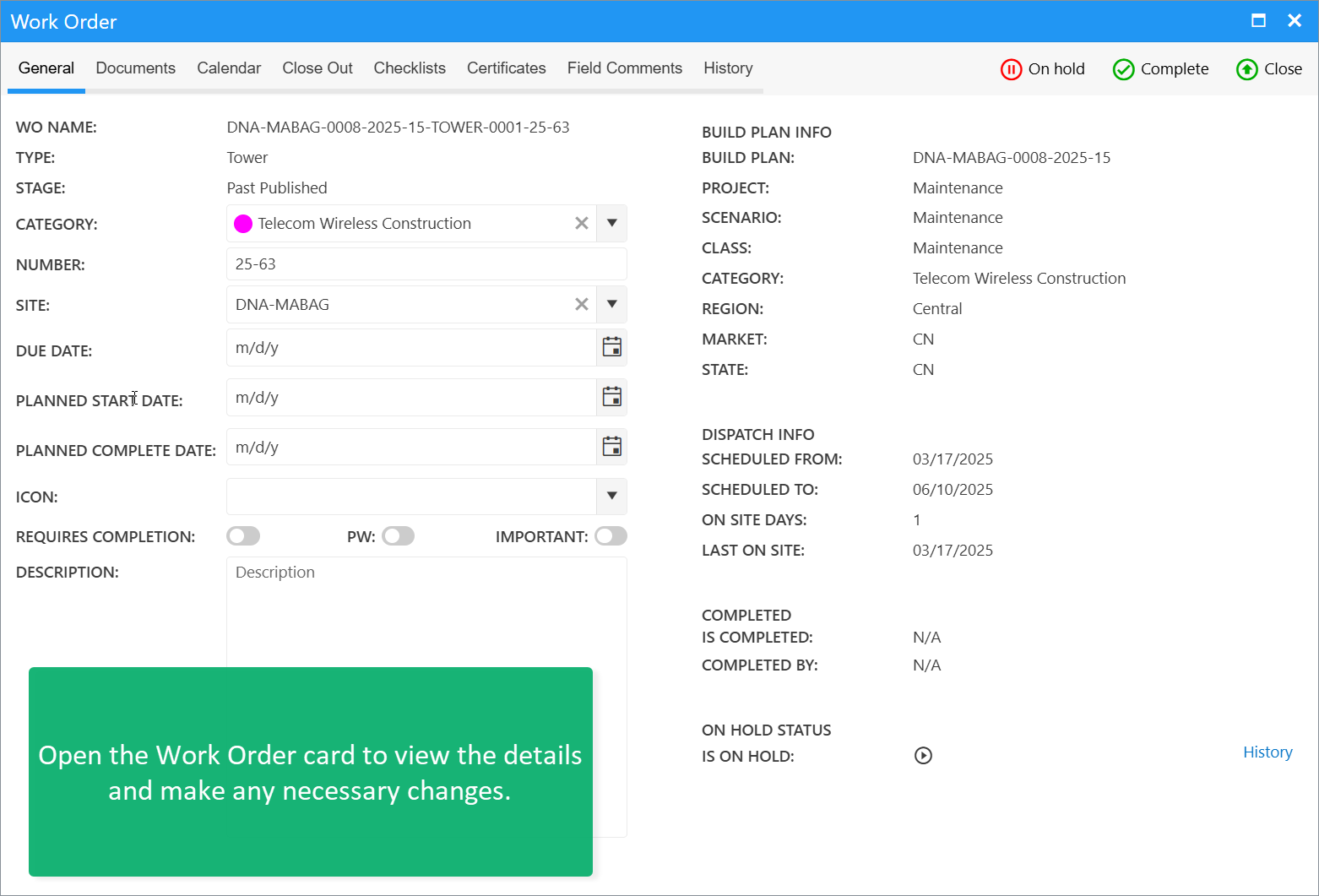
Drill down into each Work Order to view its detailed information, including field comments, the scheduling calendar, associated checklists, and more.
On the General Tab, you can make changes such as:
- Assigning or updating the category
- Adding or editing the description
- Adjusting flags: PW, Requires Completion
- Changing Work Order Importance: Low, Normal, High.
- Set an icon to visually identify the Work Order on the map in the compact Work Order scheduler.
- It helps you quickly recognize and distinguish Work Orders on the map, especially when several Work Orders belong to the same site.
- Placing the Work Order on hold or resuming it
- Completing and closing the Work Order
Navigate through other tabs to access:
- Work Order Documents
- Close-out interface
- Work Order Checklists
- Crew Certificates
- Field Comments
- Work Order change history
Managing Work Order Checklists in the Web Work Order Card
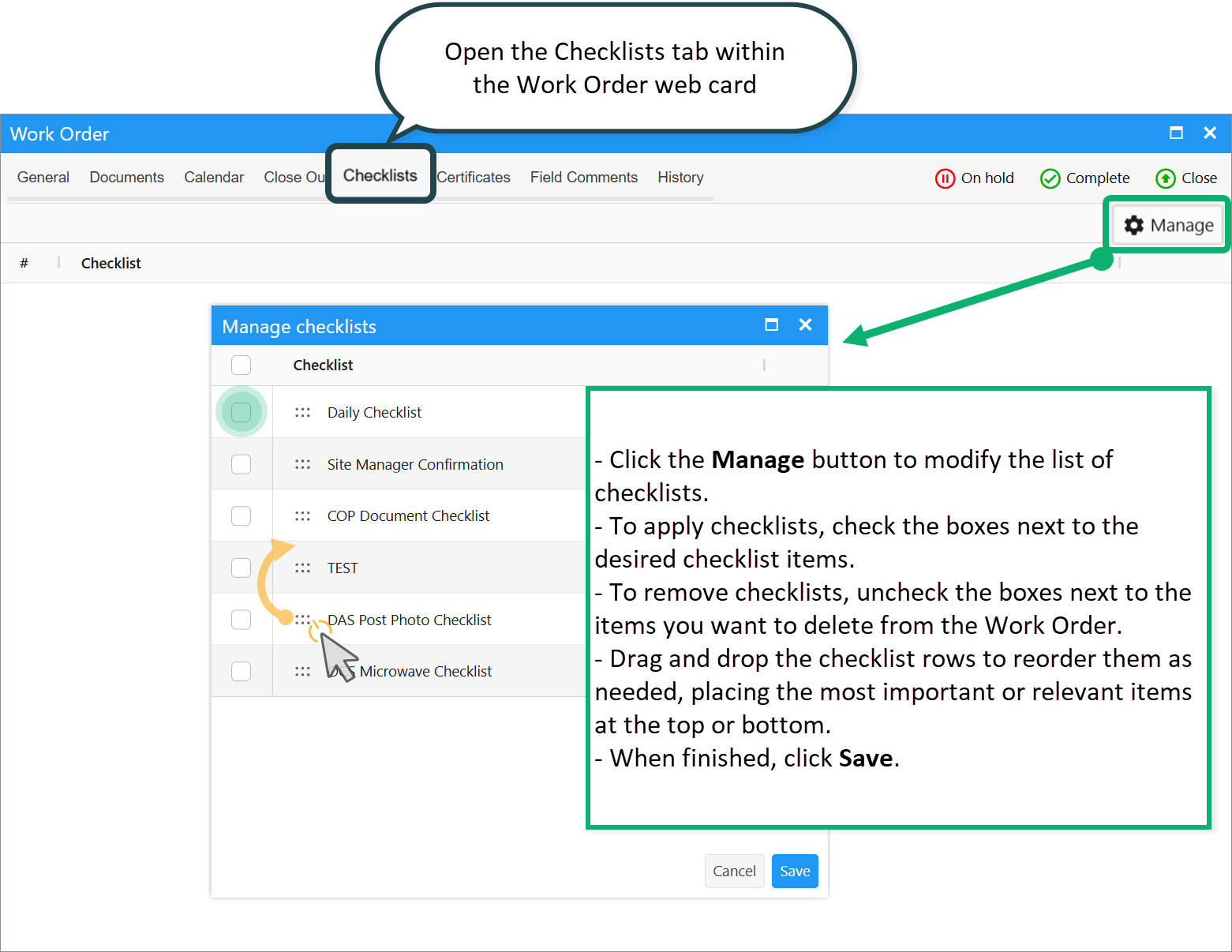
The web Work Order card simplifies the management of Work Order (WO) checklists. Checklists can be automatically applied to a Work Order based on the predefined checklist list associated with its Work Order Type.
However, you can easily modify this checklist set as needed.
Note: The process for managing checklists in the desktop Work Order card is covered in a separate article.How to Modify Checklists in the Web Work Order Card
- Open the Checklists tab within the Work Order web card.
- Click the Manage button to modify the list of checklists applied to the Work Order.
- To apply checklists, check the boxes next to the desired checklist items.
- To remove checklists, uncheck the boxes next to the items you want to delete from the Work Order.
- Drag and drop the checklist rows to reorder them as needed, placing the most important or relevant items at the top or bottom.
- When finished, click Save to apply the updated checklist list to the Work Order.
Read more about Work Order Checklists here.
Make Work Order PW
When a new Work Order is created, PW is set once from upstream defaults: WO Type, Scenario, Site, and Build Plan. The Allow PW setting must be turned on in the Work Order Type to enable PW at the Work Order level.
If you later change PW on the Work Order, or need to update older dispatches, switching the Work Order only changes the Work Order itself. Existing Dispatches keep their original PW value until you run Populate.
When you create a Dispatch, the PW flag is automatically copied from the Work Order. You can still edit the flag at the Dispatch level if needed.
Hours allocated to a PW Dispatch count as PW hours. Hours allocated to a PW Work Order count as PW hours only if there is no scheduled Non-PW dispatch linked to that Work Order.
Populate PW for existing Dispatches
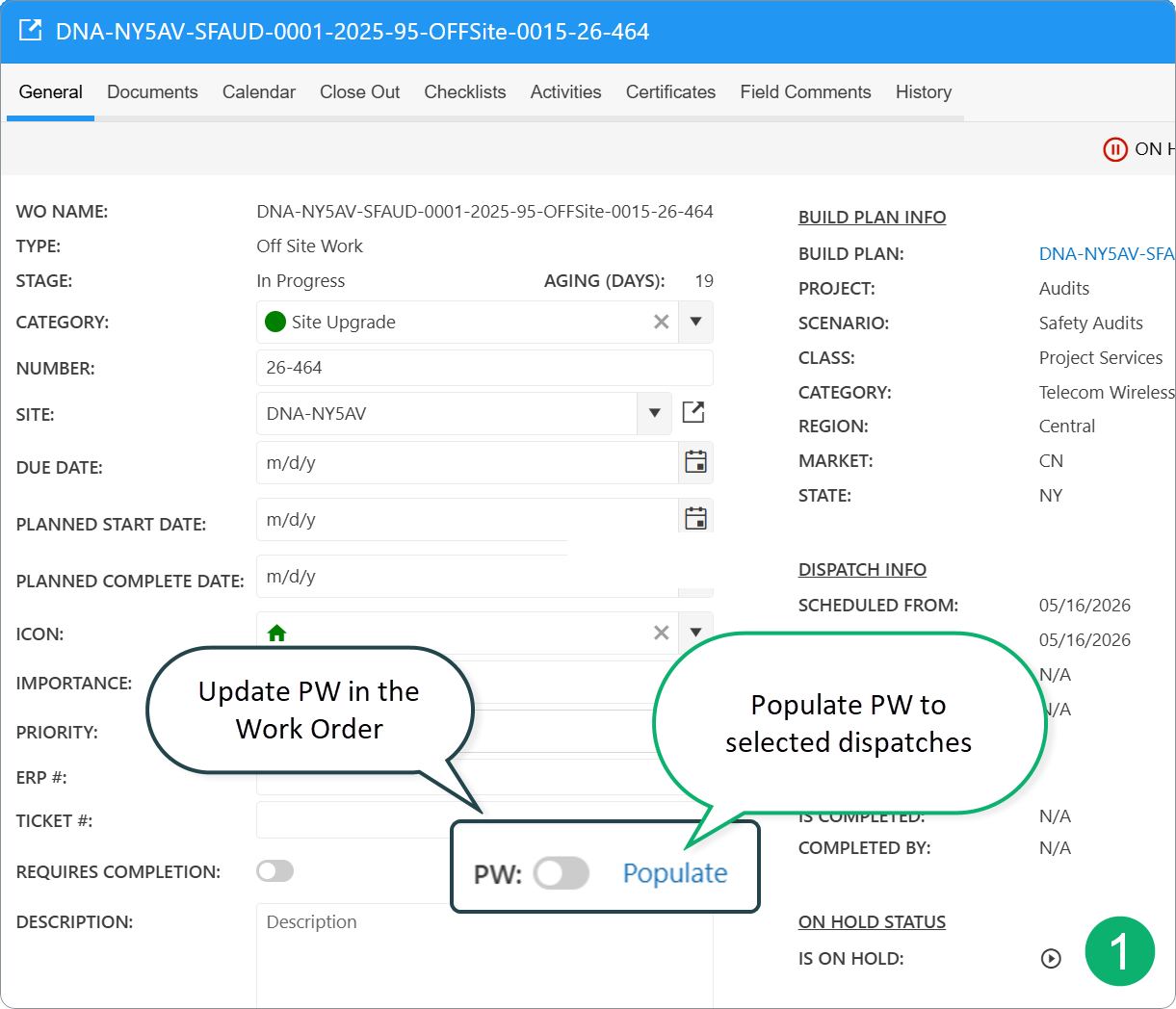
On the Work Order card > General tab:
- Turn PW on or off with the switch.
- Click Populate.
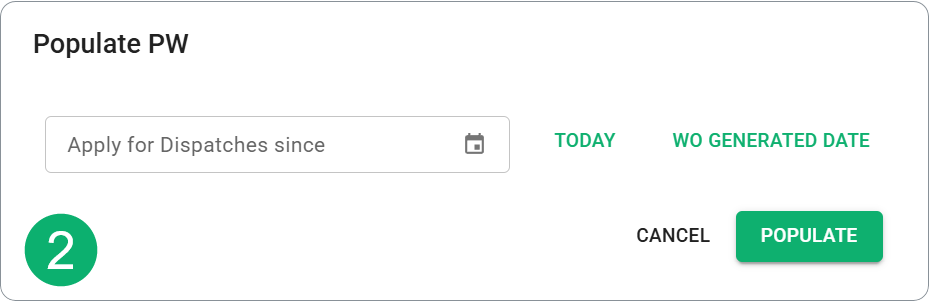
- In the dialog, optionally choose Apply for Dispatches since or use shortcuts such as Today or WO Generated Date.
- Confirm Populate.
The system updates the PW state in dispatches from the selected date onward.
What Populate does not do
- Time Cards are not recalculated. Existing allocation lines keep the old PW value until you run Reset on the Time Card or edit the line manually.
- Locked Time Cards do not update automatically.
Managing Employee Certificates in the Work Order Card
If your system has Certificate Management enabled, you can easily oversee employee credentials for any specific Work Order.
From this view, you can:
- View currently applied certificates.
- Edit the certificate list.
- Set the minimum number of certified employees required for the job.
How to Manage Certificates
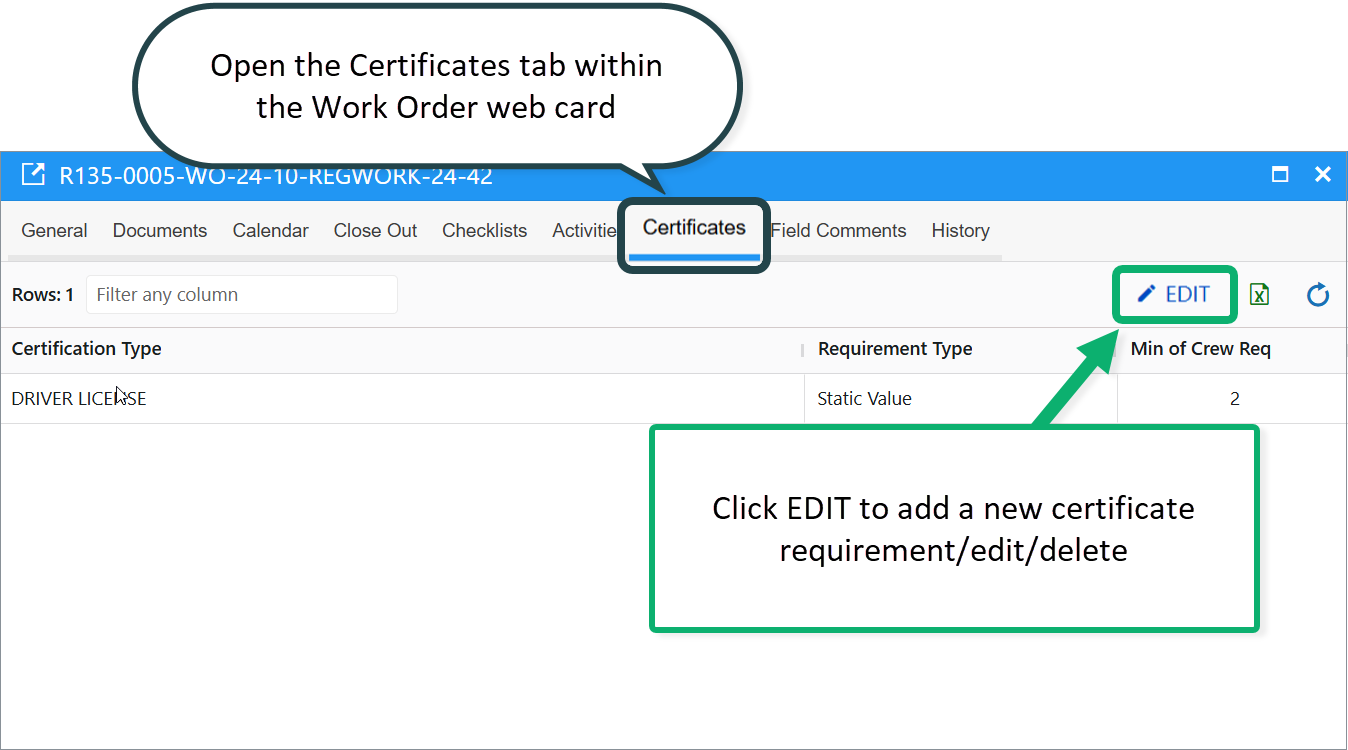
- Open the Certificates tab in the Work Order web card.
- Review the current certificate requirements.
- Click the Edit icon to make changes.
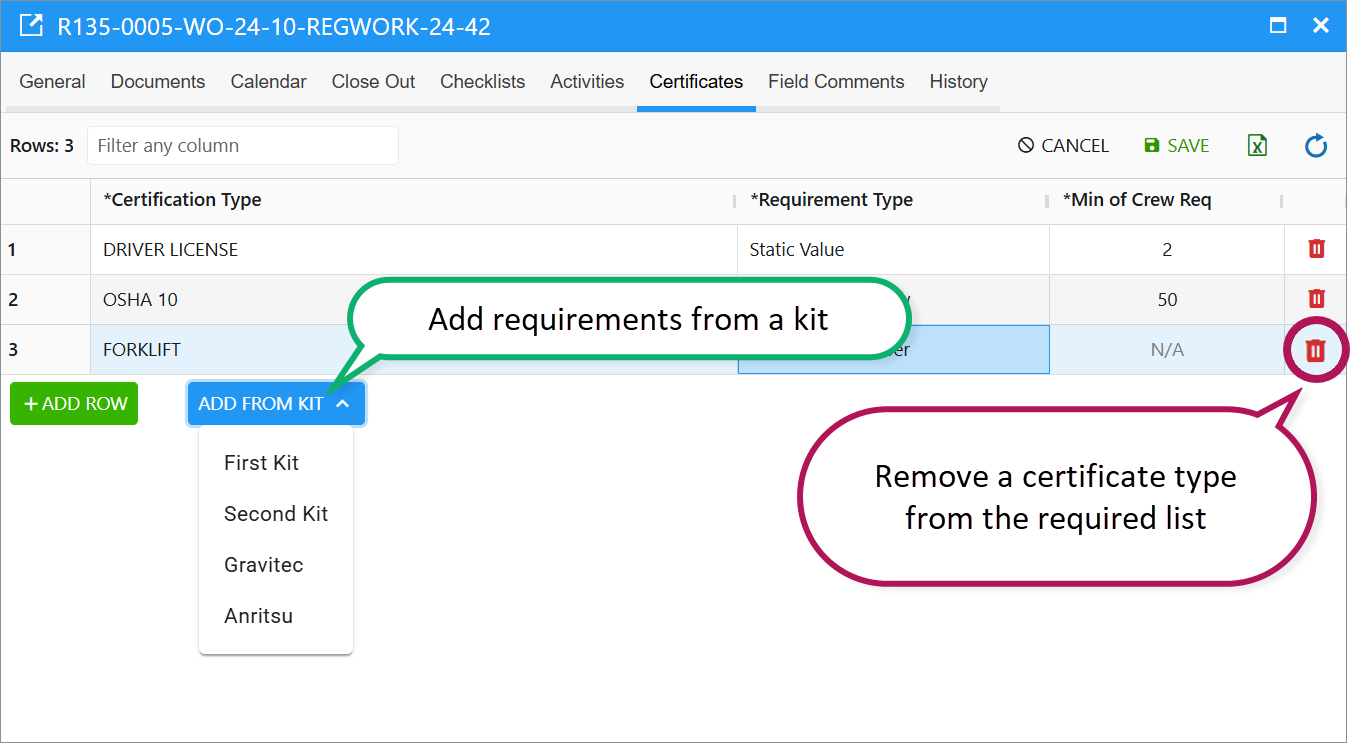
- Remove a certificate: Click the bucket icon next to it.
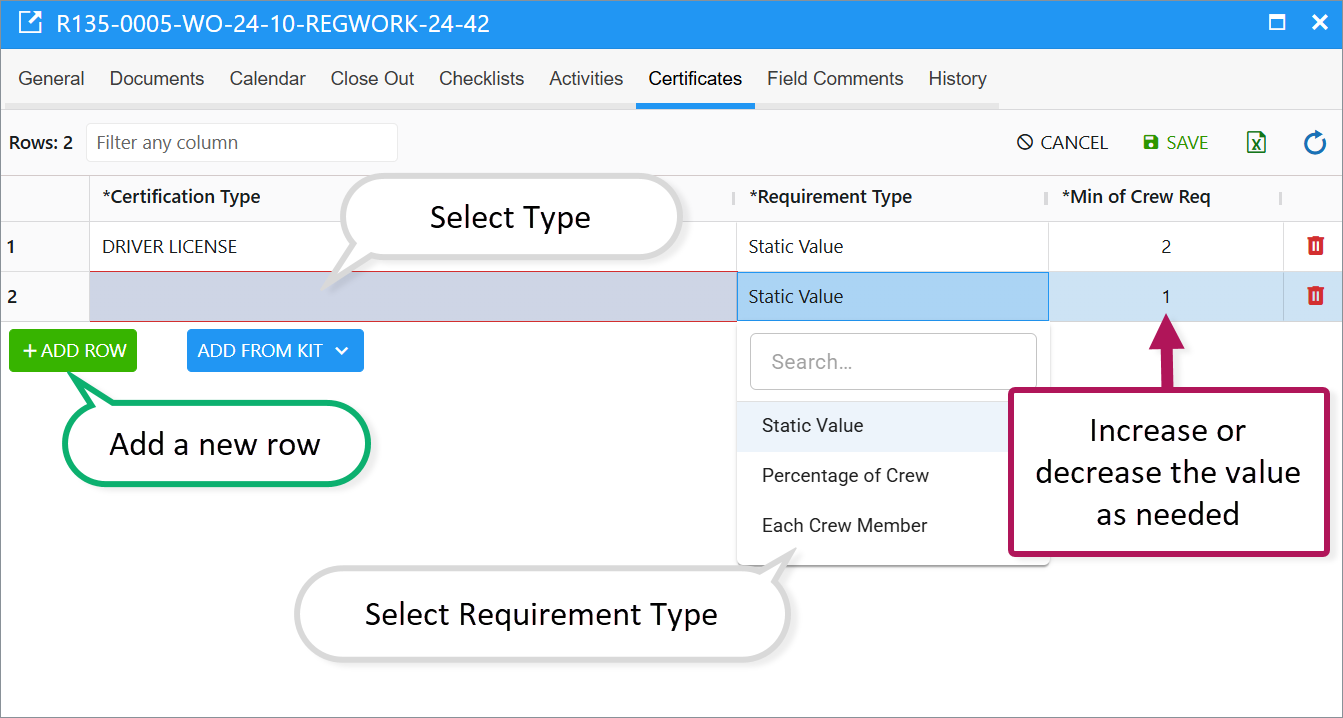
- Adjust minimum crew requirement: Click Min of Crew Req and update the value or percentage.
- Add a new certificate requirement: Click Add Row, then:
- Select Certificate Type.
- Choose Requirement Type.
- Specify the minimum number/percentage of employees.
- Note: For Each Crew Member, the minimum is always zero.
- Add from a Kit: Click Add from Kit and select the kit.
- Click Save to apply changes.
Related Articles
Work Orders Scheduler Dashboard: Grid, Calendar, and Map in One View.
Was this article helpful?
That’s Great!
Thank you for your feedback
Sorry! We couldn't be helpful
Thank you for your feedback
Feedback sent
We appreciate your effort and will try to fix the article