TABLE OF CONTENTS
Applying activities to Drives is a configurable, per‑instance feature. If this setting is enabled in your instance, any employee who is allowed to allocate activities can record their driving time as the driver in the mobile app.
How it works
- Open the mobile app and go to the Time Keeping module.
- Clock in to start recording your worked hours, if you have not already.
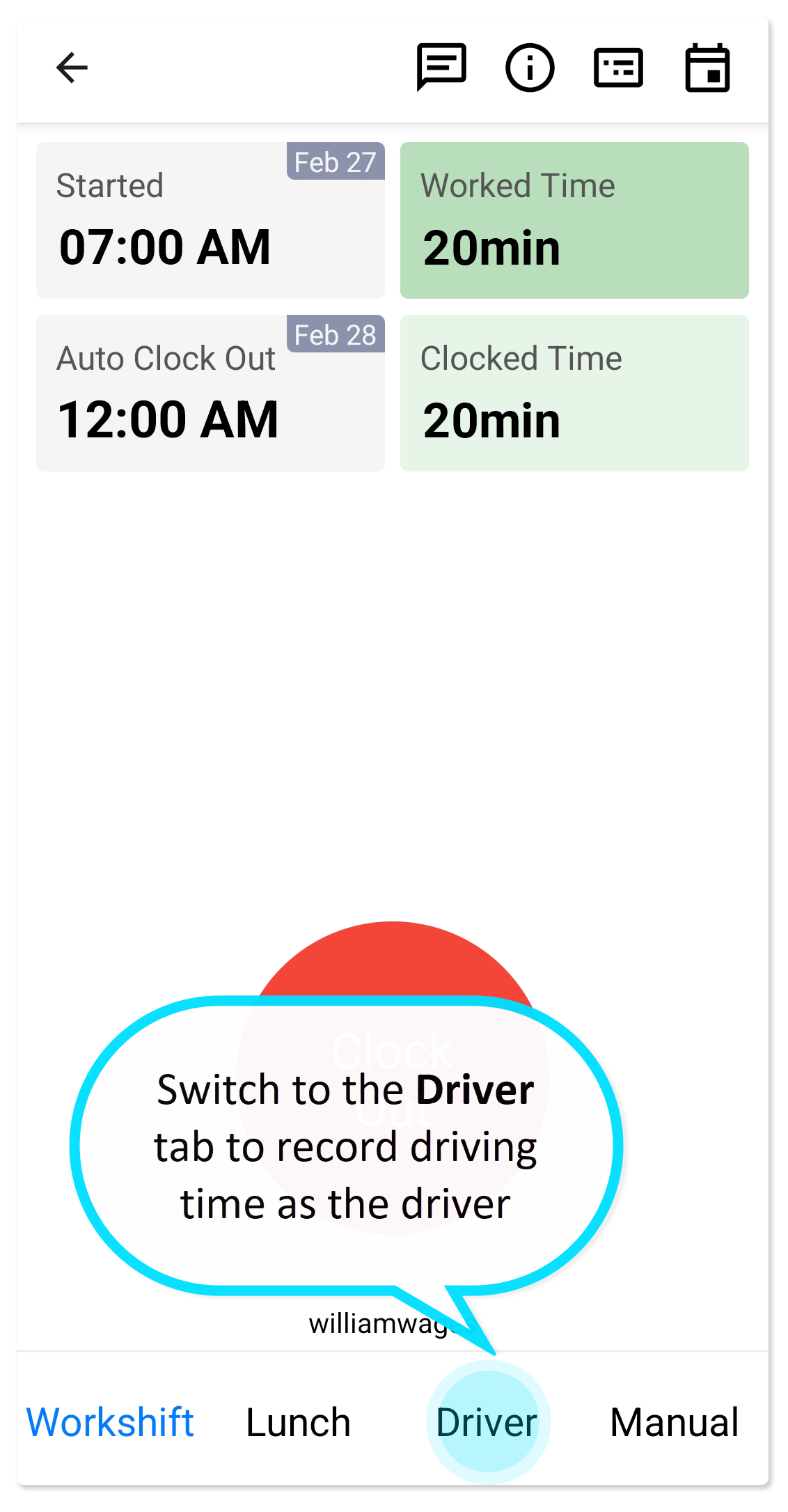
- Switch to the Driver tab to record driving time as the driver.
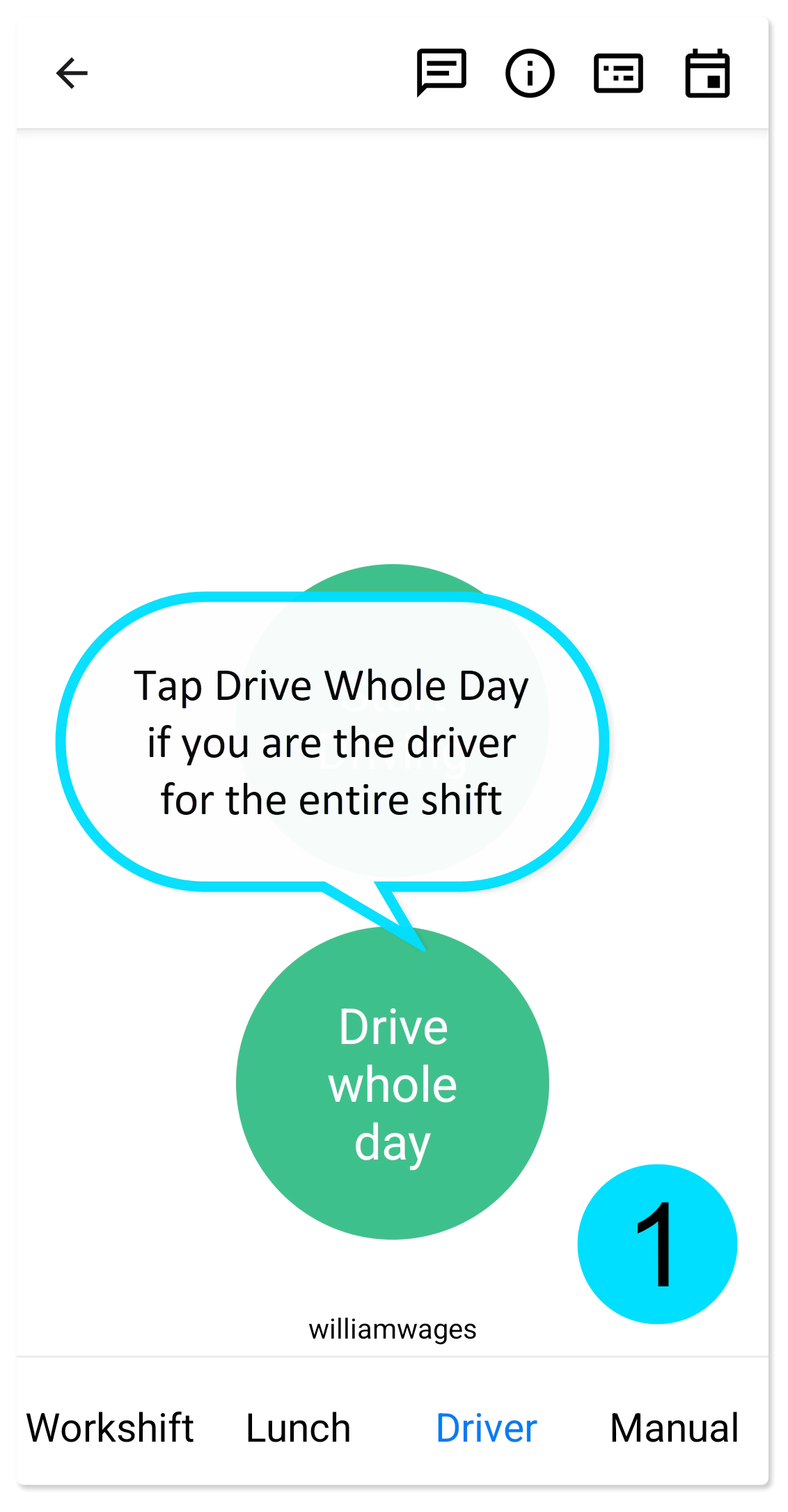
Drive Whole Day
- On the Driver screen, tap Drive Whole Day if you are the driver for the entire shift.
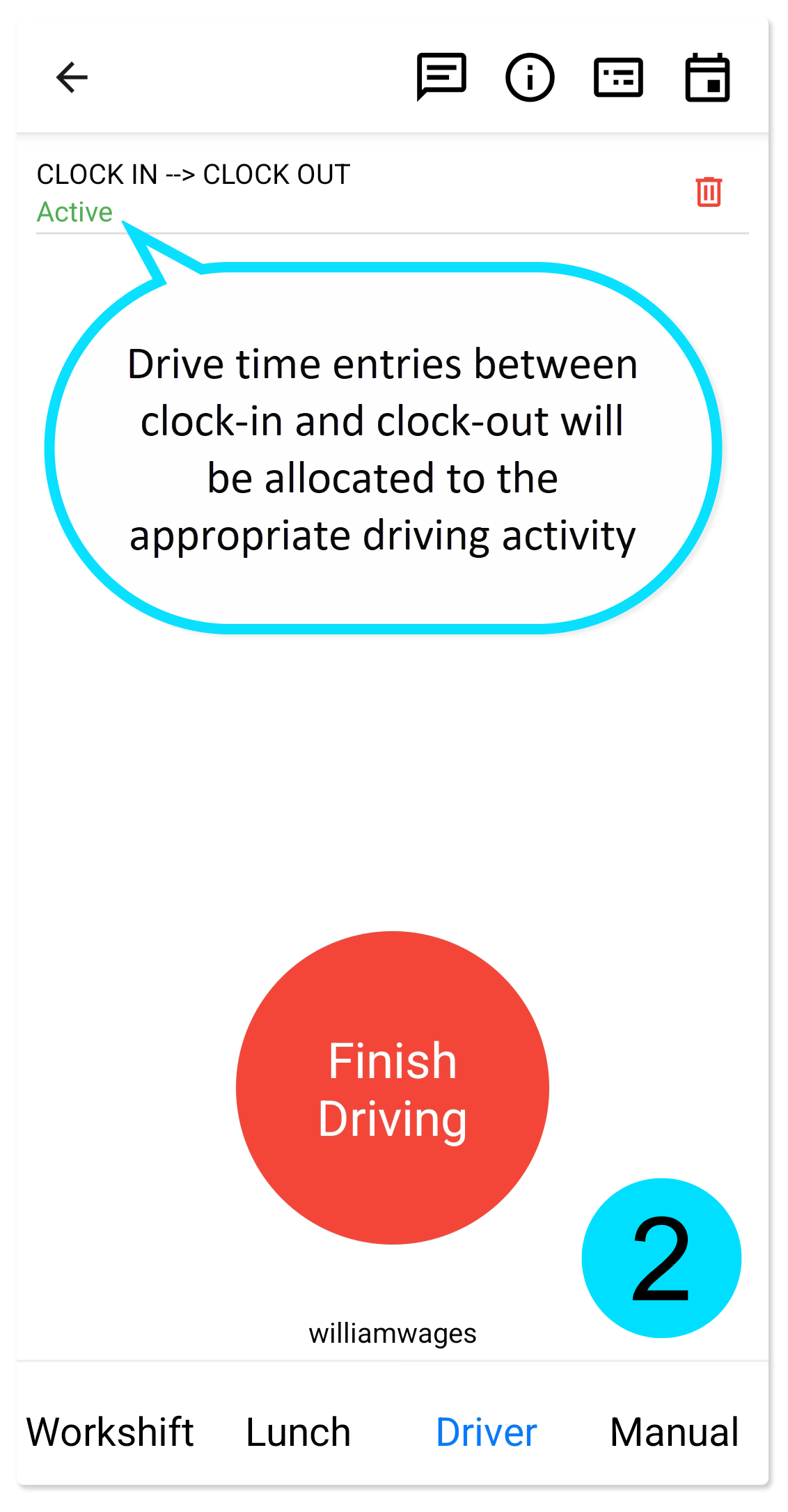
- Any drive time entries between clock-in and clock-out, identified by the system after your time card is reprocessed, will be allocated to the appropriate driving activity.
Example:
- Clock in / clock out: 7:00 am – 5:00 pm
- You are driving: 7:00 am – 8:00 am and 3:00 pm – 5:00 pm
- All drive time during these periods is recorded with you as the driver and allocated to the driving activity.
Start and Finish Driving
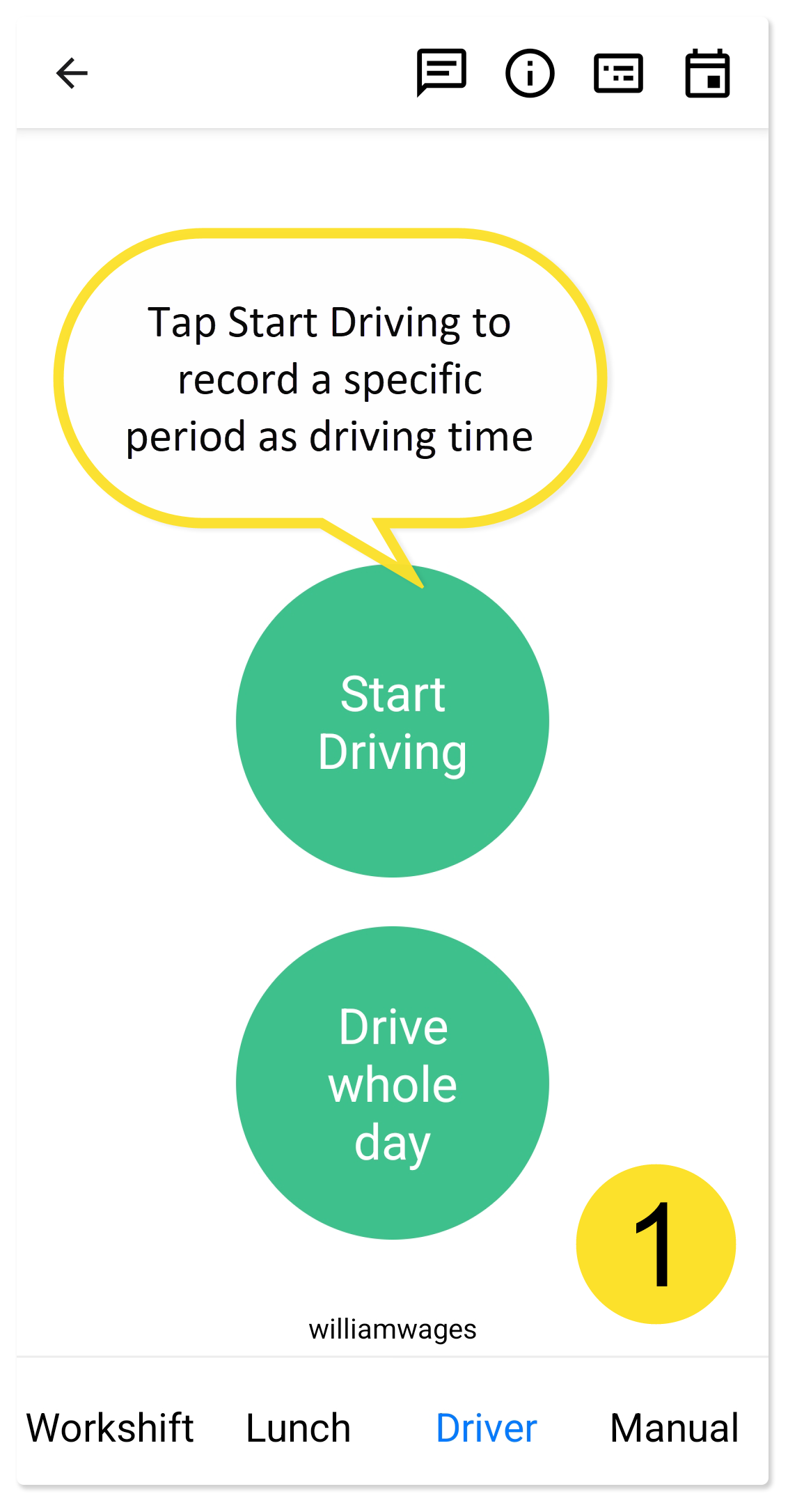
- Tap Start Driving to record a specific period as driving time.
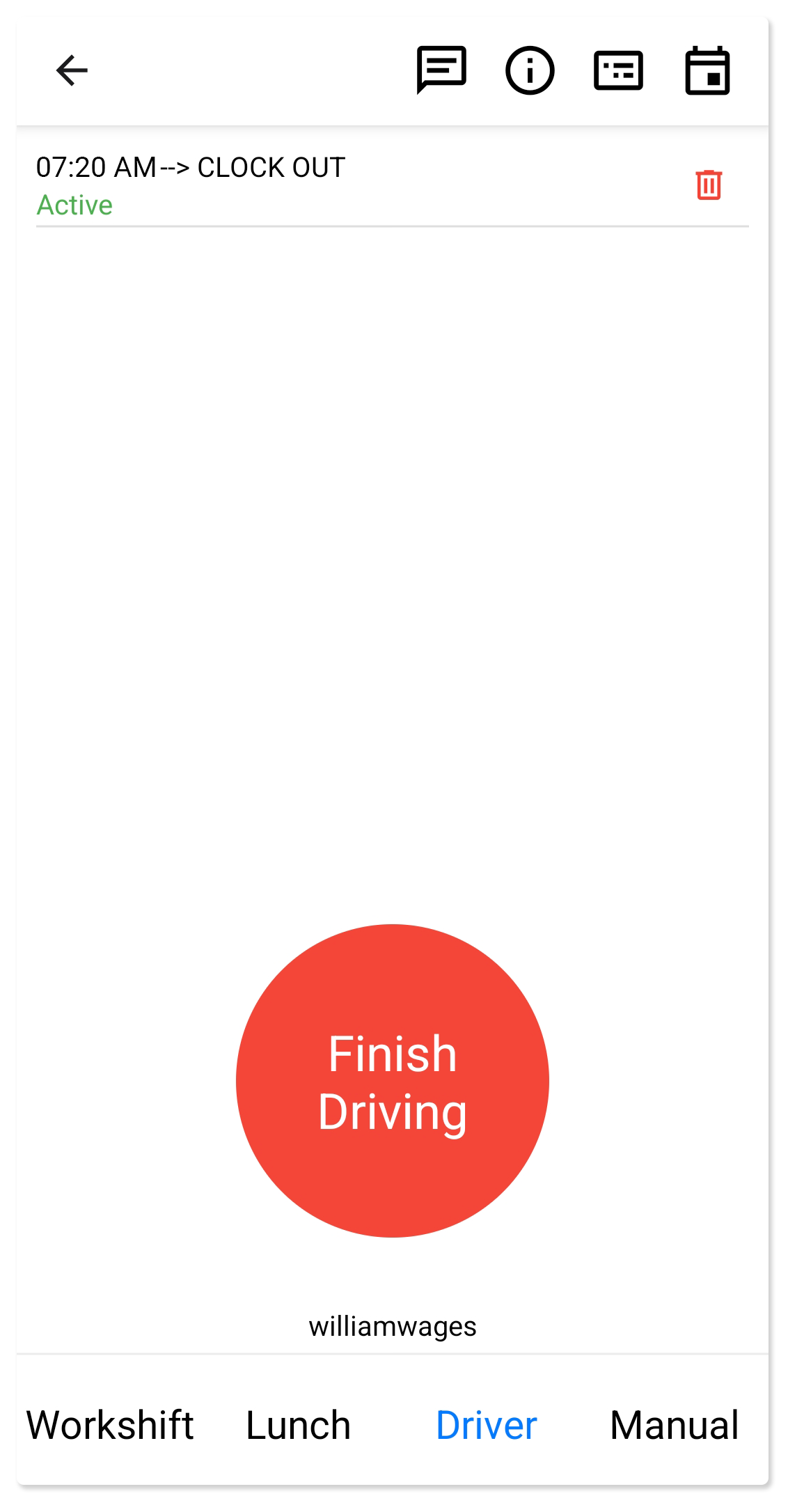
- Tap Finish Driving to stop recording driving time.
Example:
- Clock in / clock out: 7:00 am – 5:00 pm
- You are driving: 7:00 am – 8:00 am and 3:00 pm – 5:00 pm
- Driver time recorded: 7:20 am – 8:10 am and 2:00 pm – 5:00 pm
- Drive entries allocated to the driving activity: 7:20 am – 8:00 am and 3:00 pm – 5:00 pm.
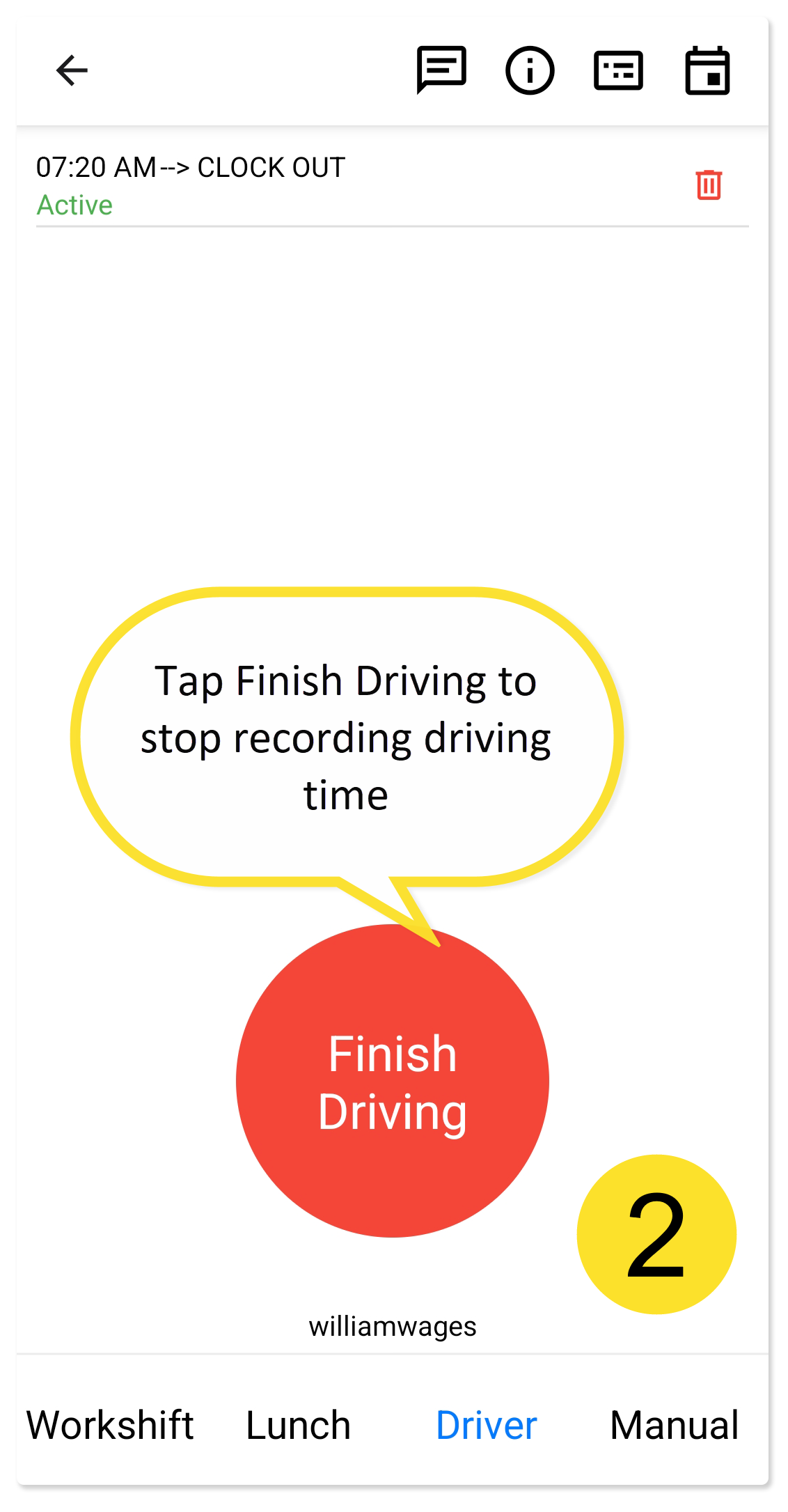
If you do not tap Finish Driving, your driver time runs from the moment you tap Start Driving until you clock out.
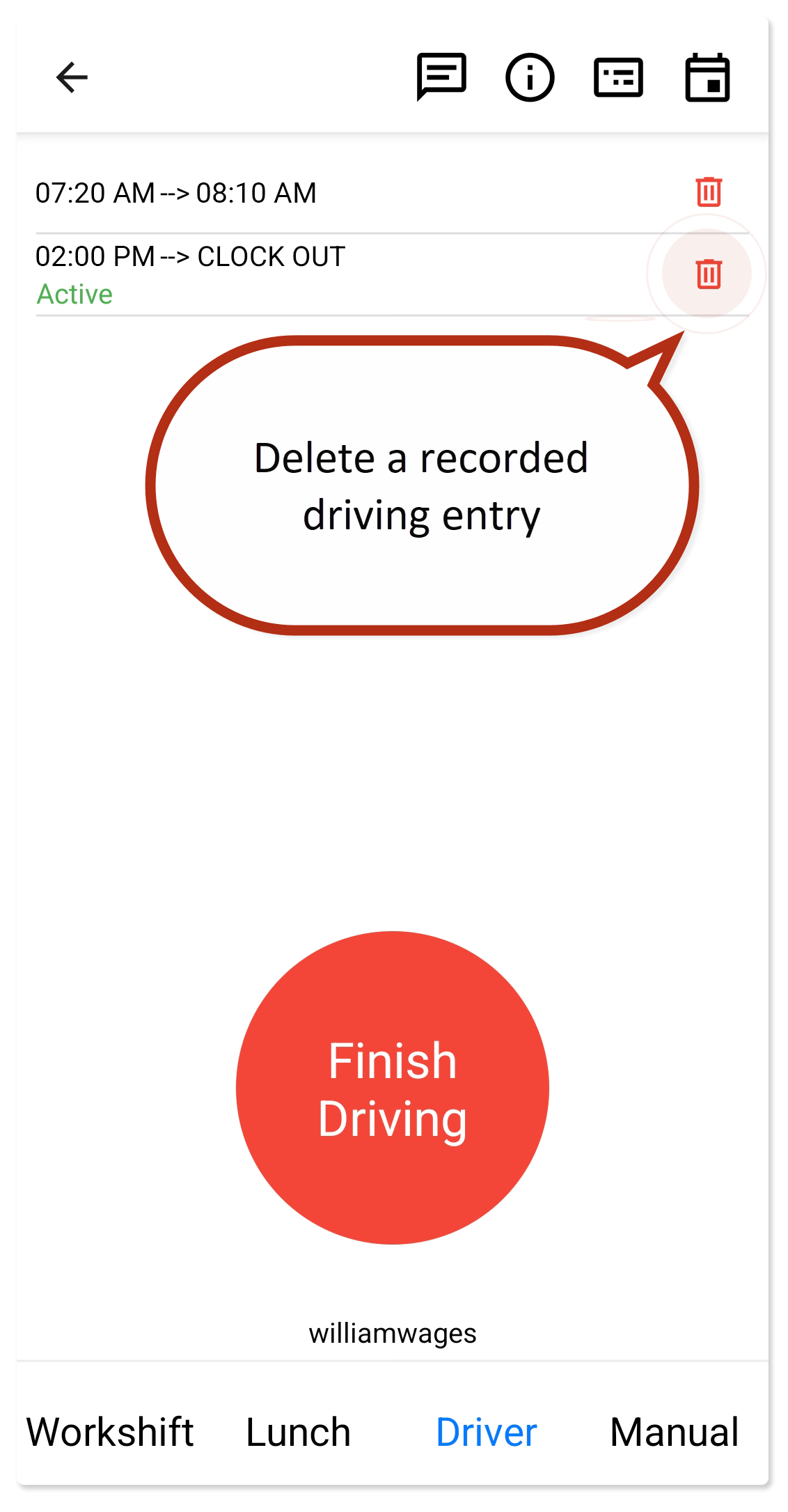
Delete driving entries
To delete a recorded driving entry, tap the Trash icon next to the entry.
Tap OK to confirm the deletion.
Was this article helpful?
That’s Great!
Thank you for your feedback
Sorry! We couldn't be helpful
Thank you for your feedback
Feedback sent
We appreciate your effort and will try to fix the article