TABLE OF CONTENTS
- What is AdHoc Overhead (AdHoc OH)?
- How to tell costs landed in AdHoc OH
- Why this happens — especially after a payroll system change
- Fix: Cost Type mapped to the wrong Payroll Item
- Fix: Imported costs with no matching time card hours
- Fix: Proportional or Fixed items with no base wages
- The two-step rule: Update cost mapping, then Recalculate Cost Rates
- Closed or paid periods
- When this article is not the right fix
- Questions & Answers
What this article covers: how to find and correct payroll costs that Fieldclix (FCX) charged to AdHoc Overhead (often shown as AdHoc OH) instead of flowing into Cost Rates and job costing. This is a troubleshooting guide — especially useful after you change payroll systems, remap pay codes, or adjust how Cost Types link to Payroll Items. It is not about employee or pay-code sync mapping between FCX and an external payroll system (see the Field Mapping articles for that).
What is AdHoc Overhead (AdHoc OH)?
When FCX imports payroll cost actuals from a processed paycheck, each dollar is classified by the Addition Type on the matching Payroll Item:
Addition Type | What FCX does with the amount |
|---|---|
N/A (wages) | Uses hours from time cards to build an hourly Cost Rate for job costing |
Proportional / Fixed | Adds employer burden on top of base wages in Cost Rates |
AdHoc – BP | Spreads the amount across non-wage quantities on time cards to a build plan |
AdHoc – Overhead | Writes the amount to Employee Payroll Period Overhead — corporate overhead, not job costing |
Ignore | Excludes the amount from Cost Rates and overhead |
AdHoc Overhead is the correct destination for items like bonuses, allowances, and employer taxes that are not tied to worked hours. The problem this article addresses is when wage-related costs end up there by mistake.
For background on Addition Types and overhead distribution, see Payroll Items and Cost Rates.
How to tell costs landed in AdHoc OH
Check these places on the affected payroll period:
Payroll Period card (Desktop) → Open Financial Distribution — look for Employee Payroll Period Overhead. Unexpected wage dollars here are a red flag.
Payroll Period card → Synced Cost Rates (or Show Cost Rates on the period report) — find the employee and payroll item. If Applied Addition Type shows AdHoc – Overhead but you expected a wage rate, the cost was misallocated.
Labor Costs report on the period — compare imported amounts to the rates applied on time cards.
Why this happens — especially after a payroll system change
When a company moves to a new payroll system (acquisition, vendor switch, or pay-code redesign), pay items often get new codes or separate earnings that did not exist before. FCX may still map worked hours to the old payroll item through Cost Type setup, while imported costs arrive under the new item.
Example: In the old system, California meal penalties were paid as regular hours (REGHR). In the new system, meal penalties have their own earning code (PNLTY). The company uses a custom Cost Type for meal penalties. After cost import, all meal-penalty dollars appear in AdHoc Overhead because FCX cannot match imported PNLTY amounts to time card hours still mapped to REGHR.
At a technical level, FCX sends a cost line to AdHoc Overhead when:
A wages (N/A) item has an imported amount but no matching hours on time cards for that employee and payroll item in the period.
A Proportional or Fixed item has an amount but the employee has no base wage hours in the period to absorb the burden.
An AdHoc – BP item has an amount but no non-wage quantity on time cards.
The Payroll Item is configured as AdHoc – Overhead by design.
The sections below walk through the most common fixes.
Fix: Cost Type mapped to the wrong Payroll Item
This is the classic post-migration scenario from the example above.
Step 1 — Correct the Cost Type mapping
Open Quick Launch → Reference Types → Cost Types.
Open the affected Cost Type (for example, Meal Penalty).
In the mapping table, find the row for the relevant wage type, prevailing-wage flag, and employee classifier.
Change Payroll Item from the old code (for example,
REGHR) to the new code (for example,PNLTY).Save.
Access note: Cost Type setup is usually done by administrators. Contact FCX Support or your implementation manager if you do not have access.
Remapping the Cost Type alone is not enough if payroll costs were already imported for the period. FCX stores a snapshot of Cost Type mapping on the payroll period when Cost Rates are first calculated. See The two-step rule below.
Fix: Imported costs with no matching time card hours
Even with correct global Cost Type setup, misallocation happens when:
Time Card hours resolve to payroll item A, but imported costs arrive on payroll item B.
The employee has imported dollars on a payroll item that has no hours on their time cards for that period.
What to check:
On the Payroll Period card (Web), open Labor Cost for the employee. Note which Payroll Item received the imported amount.
Then check the Details tab to see which payroll item their hours map to for that cost type and wage type.
If the codes differ, fix the Cost Type → Payroll Item mapping (Step 1 above), then apply the period snapshot update and recalculation.
If the mapping is correct but hours are missing (for example, non-work hours not yet allocated), resolve the time card issue first, then recalculate.
Fix: Proportional or Fixed items with no base wages
Employer taxes and benefits are often Proportional or Fixed Addition Types. FCX applies them on top of base wage (N/A) hours for the same employee in the period.
If an employee has a proportional/fixed imported amount but no base wage hours in the period (for example, only bonus pay, or all hours mapped to a different item), FCX moves that amount to AdHoc Overhead.
What to check:
Confirm the employee has N/A (wages) hours on time cards for the period.
Confirm those hours map to a payroll item that received imported wage amounts.
Confirm the proportional/fixed Payroll Items are set up correctly in Payroll Items.
The two-step rule: Update cost mapping, then Recalculate Cost Rates
Critical: When you change Cost Type mapping after payroll costs have been imported or synced, you must refresh the period's mapping snapshot and recalculate Cost Rates. Skipping either step leaves old mapping in effect.
Why the Cost Types table on the period may look empty
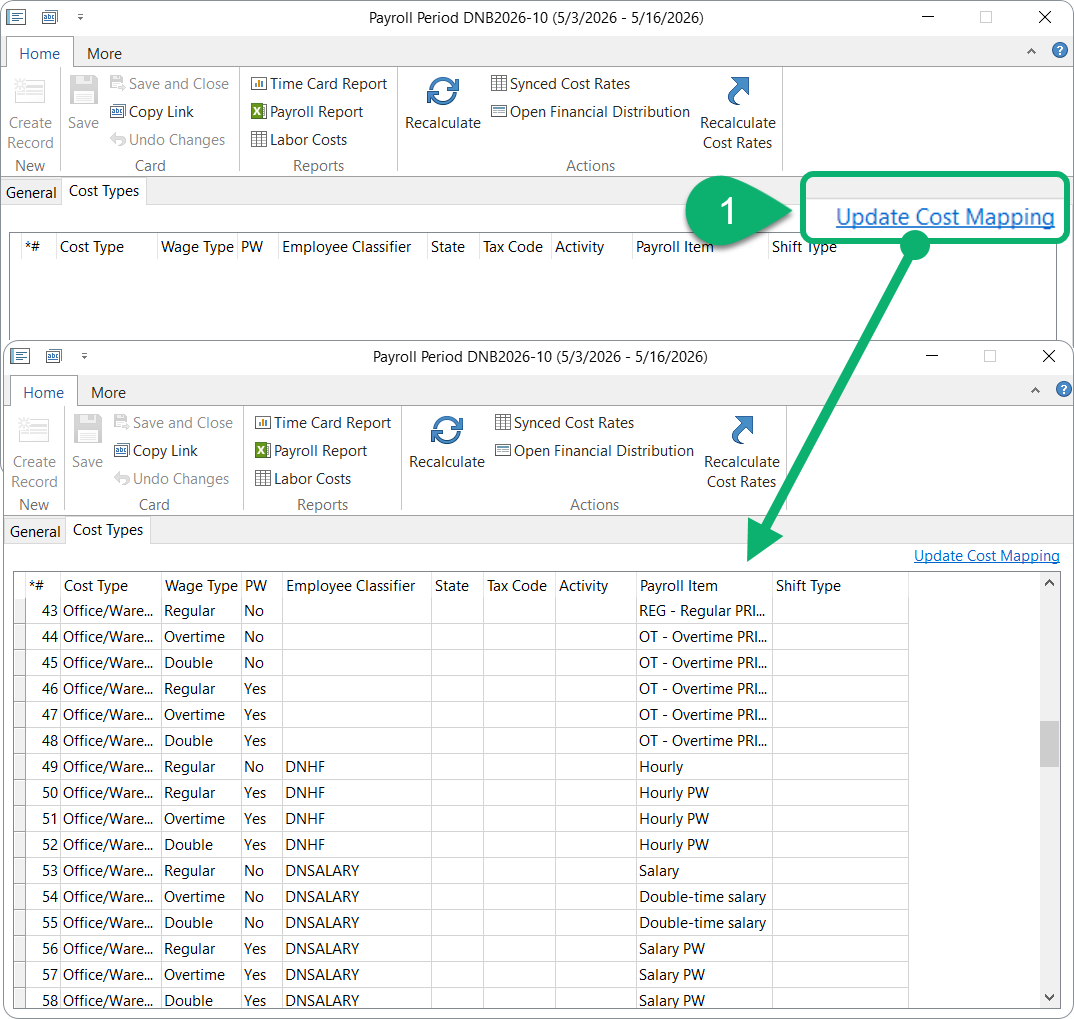
When you first open the Payroll Period card, the Cost Types tab can be empty. That does not mean FCX is using your latest global Cost Type setup. It means FCX is using the mapping snapshot from when Cost Rates were last calculated — or global defaults if no snapshot exists yet.
Any time you update Cost Type mapping after costs are in the period:
Update cost mapping on the Payroll Period card.
Recalculate Cost Rates on the same card.
Step 2 — Update cost mapping on the payroll period
Open the Payroll Period card (Desktop) for the affected period.
The period must not be Paid — this action is blocked on paid periods.
Click Update cost mapping.
Choose one option:
From current configuration — copies today's Cost Type mapping tables into the period snapshot. Use this after you fixed Cost Type setup in Reference Types.
From another period — copies the snapshot from a different payroll period. Use when a prior open period already has the correct mapping.
Save the period card.
Step 3 — Recalculate Cost Rates
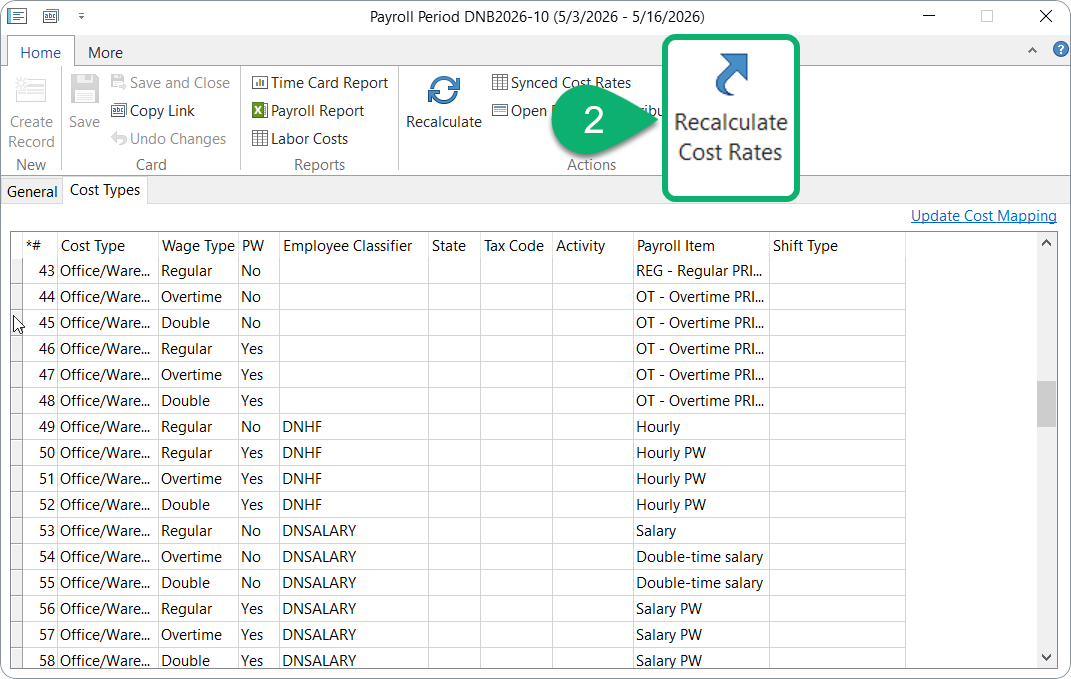
On the same Payroll Period card, click Recalculate Cost Rates.
FCX rebuilds period Cost Rates from imported check data and the updated mapping snapshot.
Review Synced Cost Rates — Applied Addition Type for the affected payroll items should now show N/A, Proportional, or Fixed instead of AdHoc – Overhead (unless the item is intentionally overhead).
Step 4 — Recalculate time card payroll data (if needed)
If time cards still show wrong payroll items or Missing Payroll Item flags:
On the Payroll Period card, run Recalculate Payroll Period, or
On each affected employee card, open TK Configuration and run Recalculate Payroll Data.
For missing payroll item mapping issues, see Troubleshoot Missing Payroll Item.
Closed or paid periods
Period status | What you can do |
|---|---|
Open, not paid | Update cost mapping + Recalculate Cost Rates (full fix above). |
Closed but not paid | Same as open — update snapshot and recalculate while the period is still editable. |
Paid | Update cost mapping is not allowed. You may need to edit the Cost Types snapshot on the period card directly (administrator), or work with FCX Support for a correction. |
When a period is closed, FCX may have stored a Cost Types snapshot during closure. For closed periods with mapping gaps, you can add rows directly on the period Cost Types tab (similar to the Cost Type card mapping table, but combined for all cost types). Then recalculate as permitted for that period stage.
When this article is not the right fix
Situation | Where to go instead |
|---|---|
Employee or pay code not linked between FCX and payroll system | Field Mapping Paylocity and Fieldclix, Field Mapping QuickBooks and Fieldclix |
Costs never imported, or wrong amounts from payroll | |
Payroll item intentionally overhead (bonus, allowance) | Expected behavior — see Payroll Items |
Cost cannot be synced at all (e.g., negative deduction) | Use Ad Hoc Expense Card for Payroll Costs that Cannot be Synced |
Time card hours have no payroll item assigned |
Questions & Answers
Q: What does "AdHoc OH" mean on my cost report?
A: It means AdHoc Overhead — payroll dollars FCX charged to Employee Payroll Period Overhead (corporate overhead) instead of building an hourly Cost Rate for job costing. It is correct for items like bonuses and allowances configured as AdHoc – Overhead. It is a problem when wage-related costs land there by mistake.
Q: We changed payroll systems and wage costs show up in overhead. Is that a sync problem?
A: Not necessarily. Sync may be working — costs are imported — but FCX cannot match imported amounts to time card hours because Cost Type → Payroll Item mapping still points to old pay codes. Fix the Cost Type mapping, Update cost mapping on the period, then Recalculate Cost Rates. Sync mapping (linking employees and pay codes between systems) is a separate topic covered in the Field Mapping articles.
Q: I fixed the Cost Type mapping. Why are costs still in AdHoc Overhead?
A: FCX keeps a snapshot of Cost Type mapping on each payroll period when Cost Rates are calculated. Changing global Cost Type setup does not automatically update open periods. Run Update cost mapping (from current configuration) on the Payroll Period card, then Recalculate Cost Rates.
Q: The Cost Types tab on my payroll period is empty. Which mapping is FCX using?
A: An empty tab does not mean "use current global setup." FCX uses the mapping from the last Cost Rates calculation for that period (or global defaults if none exists). After any Cost Type change post-import, refresh with Update cost mapping.
Q: Can I run Recalculate Cost Rates without Update cost mapping?
A: Recalculate alone reprocesses imported dollar amounts with the existing period snapshot. If mapping is stale, misallocation persists. Always update cost mapping first when Cost Type setup changed after import.
Q: Why would a Proportional payroll item go to overhead?
A: Proportional and Fixed items need base wage (N/A) hours on the employee's time cards in the same period. If there are no base hours to attach the burden to, FCX treats the amount as AdHoc Overhead.
Q: Can I fix this on a paid payroll period?
A: Update cost mapping is blocked on paid periods. Options include editing the period Cost Types snapshot directly (administrator access) or contacting FCX Support. Prevention — fix mapping before marking the period paid — is strongly recommended.
Q: How is this different from using an Ad Hoc Expense Card?
A: This article fixes misallocated imported/synced costs — dollars that came from payroll but landed in the wrong bucket. The Ad Hoc Expense Card is for costs that cannot be captured through payroll sync at all (for example, negative deductions). Use the right tool for the situation.
Was this article helpful?
That’s Great!
Thank you for your feedback
Sorry! We couldn't be helpful
Thank you for your feedback
Feedback sent
We appreciate your effort and will try to fix the article