TABLE OF CONTENTS
- Who have access to the reference
- Where Payroll Items come from
- How to create a Payroll Item
- Payroll Item Configuration
- How Hours from Time Cards Match to Payroll Items
- Addition types of Payroll Items
- Questions & Answers
We use the Payroll Items reference to set up the earnings, deductions, and contributions that are used in your company.
Who have access to the reference
The Payroll Items reference is a system reference like the Cost Types. A regular user cannot create a new record, but can select items from the list in the Labor Cost Rates library to match with the required wage type and rate.
The reference is accessible to the “Administrators”user group.
Generally, the payroll items are configured by FCX according to your company's needs.
Where Payroll Items come from
Most Payroll Items in Fieldclix are synced from your payroll system, not typed in by hand. Each item represents an earning, deduction, tax, or contribution code your company pays through payroll. Fieldclix links that code to time keeping, cost rates, and job costing.
Use this table to find how items arrive for your payroll system:
Your payroll system | How Payroll Items get into Fieldclix | Field Mapping article |
|---|---|---|
QuickBooks Desktop | Automatic sync from QuickBooks wage and non-wage payroll items | |
QuickBooks Online | Not synced — items are configured in Fieldclix during implementation | Field Mapping QuickBooks and Fieldclix (QBO limitations) |
Paylocity | Automatic sync (earnings, deductions, taxes) | |
Empower Prism | Automatic sync via API | |
Paycom | Automatic sync from pay codes in file-based integration | |
No payroll integration | Set up during implementation; may align with manual cost import pay codes |
After items exist in Fieldclix, configure each one (wage flag, Addition Type, financial account). Imported payroll cost actuals use these items to calculate Cost Rates.
Administrators maintain the reference; regular users select items from the list when setting up labor cost rates.
How to create a Payroll Item
Payroll Items should be synced from a payroll system. It is a key element to match payroll data correctly between FCX and payroll systems. Manual creation is rare and usually limited to administrators during setup. If a pay code exists in payroll but not in Fieldclix, check your Field Mapping article for your system (QuickBooks Desktop or Paylocity, Prism, Paycom).

Payroll Item Configuration
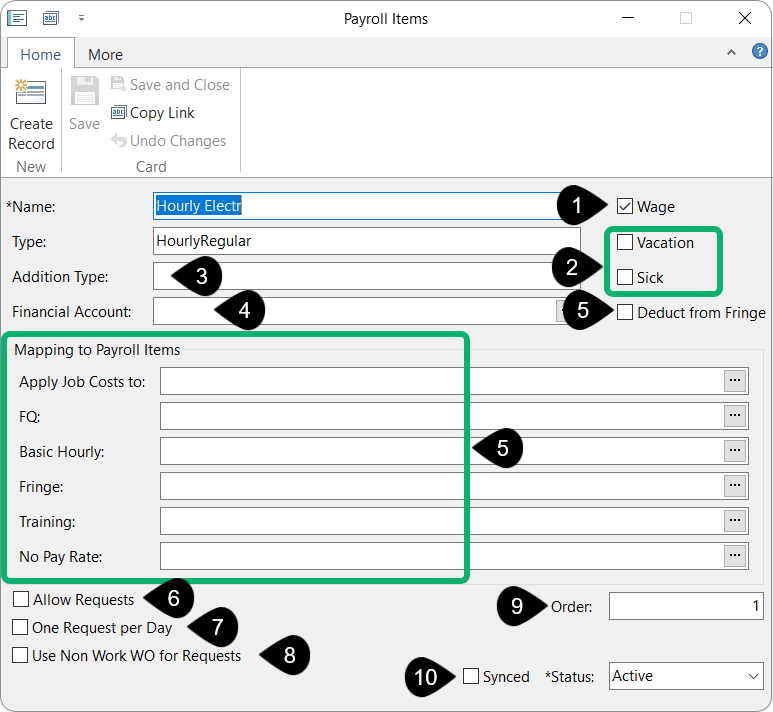
1. “Wage” checkbox is mainly configured by FCX.
It must be checked for any Payroll Item with Hours to calculate a Labor Rate Burden.
An unchecked “Wage” box indicates a non-wage payroll item. These payroll items are excluded from the Daily and Weekly Cost Rate calculations.
- Note that “Unit” QTYs are for Non-Wage Items are not treated as hours here.
2. Vacation and Sick — filled in when synced from a payroll system. The checkboxes designate a payroll item as a vacation or sick item for further correct matching to a required cost type.
3. Addition Type impacts on cost rate calculation. Read more below.
4. Financial Account is used to record labor costs to the selected account for all Time Card hours assigned to the appropriate Payroll Item.
The FA in the payroll item predominates the FAs specified in a Cost Type, a WO Type and so on. Read more about how we calculate an FA in the Financial Distribution here.
5. Mapping to Payroll Items
Apply Job Costs to is used to map payroll items for job costing. For example, in FCX, you track all PW hours (regular, overtime, double time) on the “PW” payroll item. However, in your payroll system, these PW hours may be allocated to multiple payroll items on a check: PW Regular, PW OT.
To map payroll items, open the required items in FCX and specify the item that will accumulate all PW cost rates.
FQ Payroll Item (Federal Qualified Payroll Item) on the payroll item card lets you designate a specific payroll item for tracking hours exceeding the standard 40-hour workweek, per U.S. federal Fair Labor Standards Act (FLSA) rules.
- State-specific overtime rules (e.g., daily thresholds) may still apply separately, but the FQ item focuses on federal aggregation across the full week.
For example, in California:
- Daily limits: Overtime after 8 hours; double-time after 12 hours.
- Weekly OT limit: 40 hours.
Payroll items configuration:
- Overtime Rate: Payroll item for standart overtime hours. It matches to the FQ Overtime Rate payroll item.
- Double-Time Rate: Payroll item for double-time hours.
Example Calculation (CA employee):
- Mon–Thu: 10 hrs/day = 32 hrs regular + 8 hrs Overtime Rate.
- Fri: 12 hrs = 8 hrs regular + 4 hrs Federal Qualified Overtime Rate.
Total week: 52 hrs
- Regular: 40 hrs
- Standard Overtime: 8 hrs
- Federal Qualified Overtime: 4 hrs
Basic Hourly — links this internal item to the external BHR payroll item used with Pay Rate Schedules.
Fringe — links to the external Fringe item for fringe benefits from the schedule.
Training — links to the external Training contribution item from the schedule.
Deduct from Fringe — when checked on an employer-contribution item, that amount is taken from the fringe pool instead of added on top.
Read more about Managing Structured Pay Rate to understand External Payroll Items.
No Pay Rate — use No Pay Rate on a Payroll Item that already has Basic Hourly (and optionally Fringe / Training) mapped for structured / prevailing-wage pay.
What it does
- Cost Types (or your usual mapping) assign hours to this Payroll Item.
- Fieldclix looks for a matching row in the employee’s or Build Plan’s Pay Rate Schedule (same logic as in Managing Structured Pay Rate).
- If a schedule row is found — BHR, Fringe, and Training apply as usual. No Pay Rate is ignored.
- If no schedule row matches and No Pay Rate is filled — Fieldclix reassigns those hours to the Payroll Item you selected in No Pay Rate. Structured BHR / Fringe / Training mapping is not applied to that line.
When to set it
- The item is used with Pay Rate Schedules (Basic Hourly is filled).
- Some Time Cards may not match any schedule row (missing classifier/item row, cutoff, applied date, or no schedule on the employee/Build Plan).
- You want those hours to stay on a standard wage code instead of sitting on a structured item with no rate.
Leave No Pay Rate empty if you prefer to keep hours on the original item and fix the schedule (or mapping) yourself.
6. Allow Requests — to create a Miscellaneous request in the FCX Mobile App.
7. One Request per Day — specifies that an employee can only create one miscellaneous request for the current payroll item per day.
8. Use Non-Work WO for Requests — to use a Non-Work Work Order for a Misc request of the current payroll item.
The Non Work WO is calculated from the Employee's TK Configuration, otherwise it is set by the static value from the system constant.
9. Order — optional field. It is used to arrange the columns of the Payroll Items in the specified order on the Summary tab of the Payroll Periods dashboard.
10. Synced — indicates whether a payroll item has been synced with accounting systems (QB, Paylocity, etc).
How Hours from Time Cards Match to Payroll Items
In complex payroll systems, accurately mapping time card hours to specific payroll items is essential for compliance and financial reporting. This mapping is handled through a Cost Types Table, which acts as a logic engine to determine the correct "Payroll Item" based on a set of specific parameters.
Cost Types decide the payroll item; sync brings the catalog
The Cost Types table maps time card data (wage type, state, prevailing wage, and other fields) to a Payroll Item for each hour worked. That is separate from where the payroll item list comes from — usually a sync from your payroll system. If hours map to the wrong item after a pay-code change, update Cost Types and then recalculate Cost Rates. Background: Cost Rates.
How Payroll Items Are Calculated
When a system processes payroll, it analyzes the data on an employee's time card. Each entry is typically allocated to a cost type, wage type, state, and Prevailing Wage (PW) status. Optional fields like shift types or activities may also be included.
The system then performs a lookup against the Cost Types Table to find a match. A payroll item is only assigned when the combination of the following parameters matches a defined row in the table:
- Employee Classifier (e.g., Hourly, Salary)
- State (e.g., NY, AL)
- Tax Code
- Activity (e.g., HVAC, Electrical)
- Shift Type (e.g., Evening, Night)
- Wage Type (e.g., Regular, Overtime)
- PW (Prevailing Wage) Status (Yes/No)
The Matching Logic: Hierarchy and Priority
The system does not just look for any match; it searches for the most specific match based on a built-in priority hierarchy. The more parameters a row defines, the higher its priority.
The Priority Order:
- Employee Classifier
- State
- Tax Code
- Activity
- Shift Type
- IsPW (Prevailing Wage status)
- Wage Type
Example: If you have two rows in the table—one that only specifies an "Hourly" classifier and another that specifies "Hourly" + "NY"—the system will prioritize the second row for any work performed in New York because it is a more accurate match.
Common Mapping Combinations
It is rare for every single parameter to be used simultaneously. Instead, the system typically relies on specific clusters of data to drive the calculation. Common combinations include:
- Basic: Classifier + State
- Standard: Classifier + State + Wage Type + IsPW
- Project Specific: Classifier + State + Wage Type + IsPW + Activity
- Shift Specific: Classifier + State + Wage Type + IsPW + Shift Type
- Tax Specific: Classifier + State + Wage Type + IsPW + Tax Code
Example: On Site cost type
| # | Employee Classifier | State | Tax Code | Activity | Shift Type | Wage Type | PW | Resulting Payroll Item |
| 1 | Hourly | Regular | No | Item 1 | ||||
| 2 | Hourly | NY | No | Item 2 | ||||
| 3 | Hourly | Alabama Overhead 120 | Regular | Item 3 | ||||
| 4 | Classifier2 | HVAC | No | Item 4 | ||||
| 5 | Classifier2 | HVAC | Regular | No | Item 5 | |||
| 6 | Classifier3 | Evening | Regular | Yes | Evening PW Item |
- General Hourly Rule: This is a broad rule for any Hourly employee with a Regular wage type. Since State and Activity are blank, this acts as a "catch-all" for hourly staff.
- State-Specific Rule: This targets Hourly employees specifically working in NY. Because "NY" is defined, this row will override Row 1 for any work performed in New York.
- Tax Code Specific: This applies to Hourly employees with a Regular wage type specifically tagged with the Alabama Overhead 120 tax code.
- Activity Specific (Classifier 2): This applies to employees under Classifier2 when they are performing HVAC work, provided it is not a Prevailing Wage (PW) task.
- Wage & Activity Specific: Similar to Row 4, but adds the Regular wage type requirement. This ensures that only regular hours for HVAC under Classifier2 map here.
- High-Specificity Rule: This is the most complex rule in the table. It requires Classifier3, an Evening shift, a Regular wage type, and a Yes status for Prevailing Wage (PW).
Where to See Time Card Hours Grouped by Payroll Item
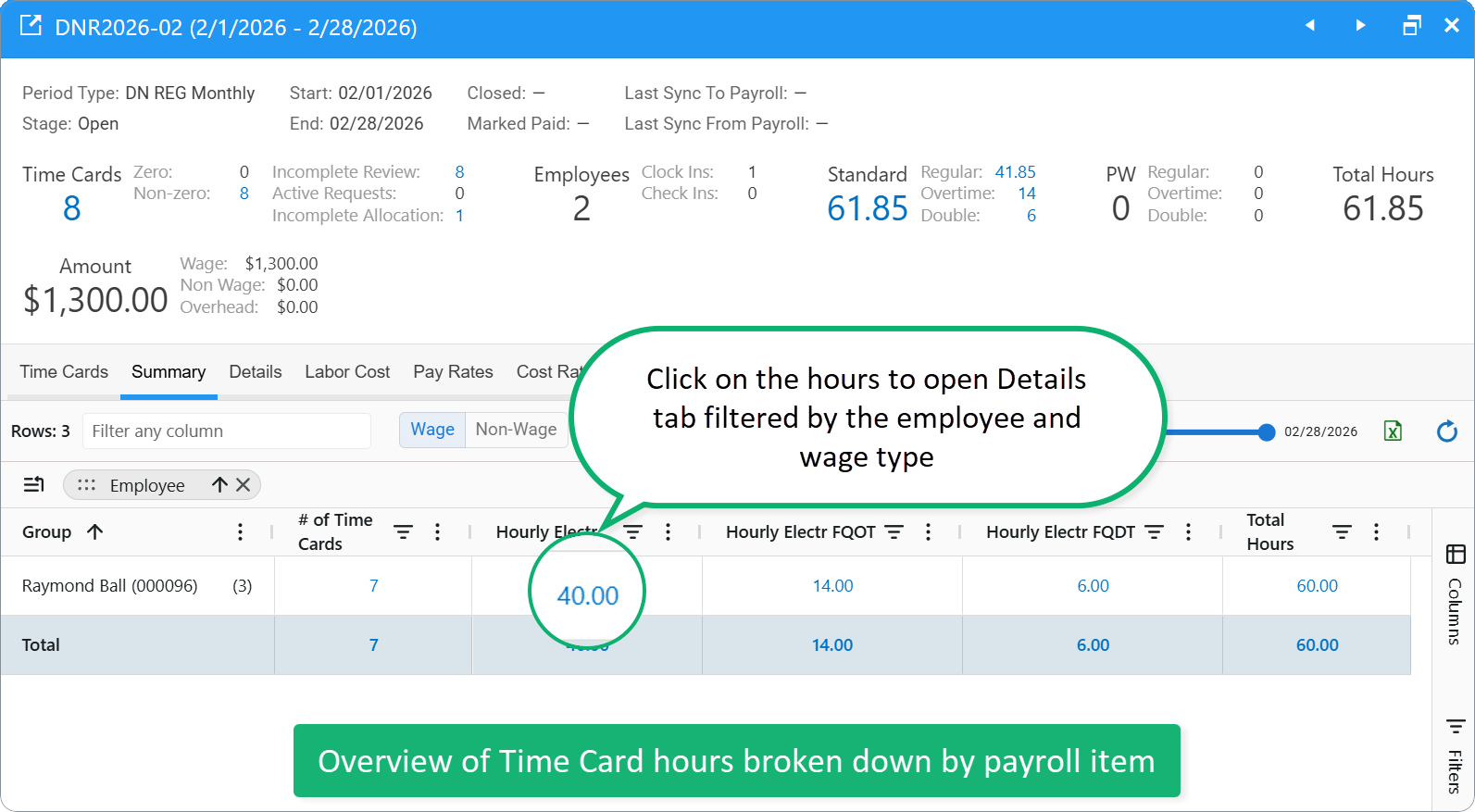
Access the Payroll Periods dashboard, select a payroll period, and go to the Summary tab.
This tab provides a clear overview of Time Card hours broken down by payroll item. The default view is a pivot table that groups hours by employee, with columns showing hours for each applicable payroll item (e.g., Regular Pay, Overtime Rate). You can easily see total hours per employee and per payroll item at a glance.
Addition types of Payroll Items
Addition Types control Cost Rates and overhead.
When payroll costs import, each dollar follows the Addition Type on its Payroll Item — into wage Cost Rates, proportional or fixed burden, build plans, overhead, or ignore. Misconfigured types are a common reason costs land in AdHoc Overhead. See Cost Rates for how adjusted rates are built, and How to Fix Payroll Cost Misallocated to AdHoc OH? if amounts look wrong.
Select an Addition Type for the Payroll Item which you want to include in Cost Rates calculation.

N/A
N/A describes hourly wage payroll item. It means no addition type for the payroll item. You must specify N/A for all payroll items that record Employees hours worked: regular pay, overtime rate, etc. It is a must to correctly calculate adjusted rates.
Ignore
“Ignore” addition clearly indicates that this payroll item is not used in Adjusted Cost Rates calculation.
For instance, “Medicare Employee” Payroll Item includes a specified wage deduction. Inside FCX, we determine this Item with “Ignore” addition type. When we sync Cost Rates of paid payroll period from QB/Paylocity, the deduction amount isn't included into Adjusted Cost Rates calculation, nor it isn't written off to the financial distribution.
Proportional – Company Contribution
A Proportional Payroll Item is used to calculate an increase in the Employee Cost Rate that is allocated proportionally according to each rate of pay. The proportional increase is calculated by the ratio of the total of the proportional payroll items to the total of gross wages paid.

Example
| # | Employee | Payroll Item | Addition Type | Hours | Rate | Amount | Adj. Rate |
| 1 | John Mark Doe | Hourly Job Related Overtime | 14.02 | 51 | 715.02 | 54.82 | |
| 2 | John Mark Doe | Hourly Job Related Time | 80 | 34 | 2720.00 | 36.55 | |
| 3 | John Mark Doe | Medicare Company | Proportional | 48.8 | |||
| 4 | John Mark Doe | Social Security Company | Proportional | 208.67 | |||
| 5 | John Mark Doe | Hourly General Operations | 34 | 36.55 | |||
| 6 | John Mark Doe | Hourly Holiday | 34 | 36.55 | |||
| 7 | John Mark Doe | Hourly PTO | 34 | 36.55 | |||
| 8 | John Mark Doe | Hourly General Operations OT | 51 | 54.82 | |||
| 9 | John Mark Doe | Hourly Education | 34 | 36.55 |

Fixed Each Payroll Period
Fixed Payroll Item is used to calculate an increase for a regularly applied (each payroll period) fixed allowance that is to be added to the Employee Cost Rate. The increase is allocated equally across each hour of labor.

Example
| # | Employee | Payroll Item | Addition Type | Hours | Rate | Amount | Adj. Rate |
| 1 | John Mark Doe | Hourly Job Related Overtime | 14.02 | 51 | 715.02 | 53.13 | |
| 2 | John Mark Doe | Hourly Job Related Time | 80 | 34 | 2720.00 | 36.13 | |
| 3 | John Mark Doe | Allowances | Fixed | 200.00 | |||
| 5 | John Mark Doe | Hourly General Operations | 34 | 36.13 | |||
| 6 | John Mark Doe | Hourly Holiday | 34 | 36.13 | |||
| 7 | John Mark Doe | Hourly PTO | 34 | 36.13 | |||
| 8 | John Mark Doe | Hourly General Operations OT | 51 | 53.13 | |||
| 9 | John Mark Doe | Hourly Education | 34 | 36.13 |

Both proportional and fixed Payroll Items stipulate which are additions come with Employee Cost Rate. They can be used simultaneously. In such a case, we calculate each type of increase (proportional, fixed), then we sum the increases to the basic rate. AdHoc – Overhead
Overhead Type isn't included in Cost Rates calculation. We take payroll data for Adhoc - Overhead Payroll Items from a payroll system and write-off as a separate source type in Financial Distribution: Employee Payroll Period Overhead. It includes all payroll overhead expenses, and it's factored into the Corporate Overhead Build Plan.
The Financial Account for payroll overhead expenses and a Corporate Build Plan are defined in the Constants/Settings.AdHoc – BP
We use 'AdHoc BP' payroll item when we can specify the Direct Cost Build Plan by contrast with AdHoc Overhead type of payroll item.
AdHoc – BP payroll items are for the group of other payroll items in payroll system, for example, expense reimbursements, travel advances, and other additions to gross or net pay.
This addition type of payroll item is used to calculate a non-wage item.
We sync the payroll item amount from a payroll system and divide it to the non-wage payroll item QTY from the Time Card non-wage table.
During financial distribution calculation, the system multiples the rate to the QTY from Time Card and writes it off to the allocated Build Plan and a specific financial account.
The financial account specified in a payroll item prevails over financial accounts from Work Order Type, Employee, and so on.

Questions & Answers
Q: What is a Payroll Item in Fieldclix?
A: A Payroll Item is a pay code record — wages, taxes, deductions, or contributions — that Fieldclix uses to match time cards, import payroll costs, and calculate labor rates. Each item has settings such as Wage, Addition Type, and Financial Account.
Q: Where do Payroll Items come from?
A: Usually from automatic sync with your payroll system (QuickBooks Desktop, Paylocity, Prism, or Paycom). QuickBooks Online does not sync payroll items. See the Where Payroll Items come from table in this article.
Q: Can regular users create Payroll Items?
A: No. The Payroll Items reference is administrator-only. Most items are synced or configured during implementation. Users pick existing items when setting up employee labor cost rates.
Q: What is an Addition Type and why does it matter?
A: Addition Type tells Fieldclix what to do with imported dollars: treat as base wages (N/A), add proportional or fixed employer burden, send to overhead (AdHoc – Overhead), allocate to a build plan (AdHoc – BP), or exclude (Ignore). It directly affects Cost Rates.
Q: How do Payroll Items relate to Cost Types?
A: Cost Types map worked hours on time cards to a Payroll Item. Payroll Items define how imported paycheck dollars for that code flow into rates and overhead. Both must align — especially after pay-code changes. See Cost Types.
Q: A new pay code appeared in payroll but not in Fieldclix — what should I do?
A: Run or wait for the payroll item sync for your system. If it still does not appear, check the Field Mapping article for QuickBooks Desktop, Paylocity, Prism or Paycom. Then set Addition Type and other fields before the next cost import.
Q: Employee-paid deductions are in our cost file — should they affect Cost Rates?
A: Usually no. Set those Payroll Items to Ignore so employee deductions do not inflate employer burden. See Import Payroll Costs with Script.
Was this article helpful?
That’s Great!
Thank you for your feedback
Sorry! We couldn't be helpful
Thank you for your feedback
Feedback sent
We appreciate your effort and will try to fix the article